Interface Quick Tour
This section provides a brief introduction to the Dev Portal interface. It covers only the essential interface elements required to get started.
See also
For a complete and detailed description of all interface components and settings, see Dev Portal Interface.
Authentication Controls
To sign in to the portal, click the Get started button on the login page.
If you need to authenticate again during your session, use the RELOGIN button in the top navigation bar.

User data (nick and uid) is displayed to the left of the relogin button.

To copy value to the buffer click the button.

UI Settings
The UI Settings menu is located to the left of the RELOGIN button. It allows you to control how configuration data is displayed in the interface.

Available options include:
Show resolved block — Toggles the visibility of resolved configuration values.
See also
For more details, see Includes.
Show diff block — Controls whether configuration differences are displayed.
See also
For more details, see Show Differences.
(1) - Save settings as JSON — Preview and download UI settings (filters, table settings) as a JSON file.
(2) - Upload settings from JSON — Upload UI settings (filters, table settings) from JSON file.
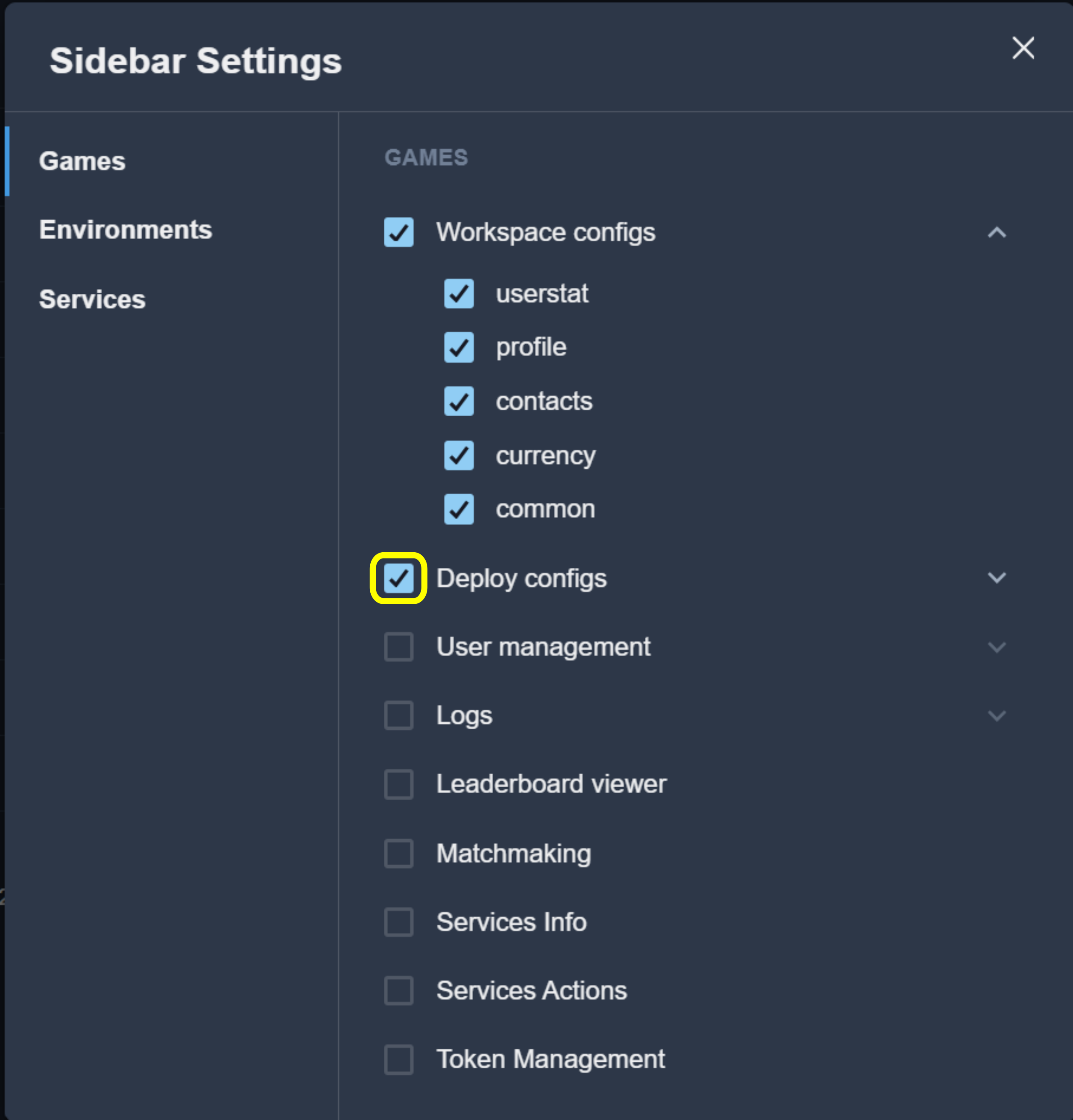
(3) - Configure sidebar sections — Edit the visibility and display order of main menu items in the sidebar.
To hide one or more menu items, clear their checkboxes.
Environment and Game Selection
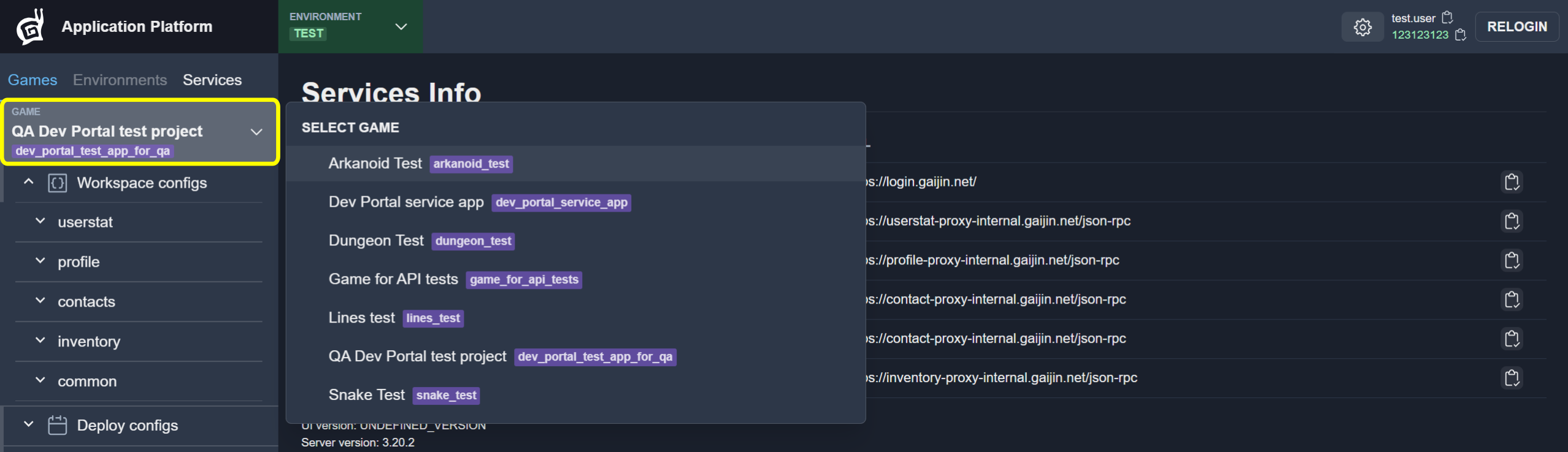
Before working with configurations or services, select the appropriate context.
To change the active environment, use the Environment selector.

To change the active game, use the Game selector.
Workspaces
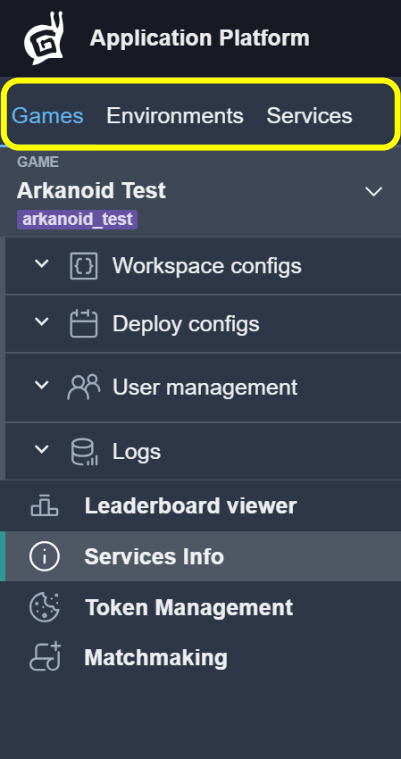
The Dev Portal interface is organized into workspaces, which can be accessed using tabs.
The following workspaces are available:
Games
Environments
Services — Manage and deploy service configurations across multiple deployment environments (circuits).
Select a workspace based on the type of resources you want to manage.
Main Menu
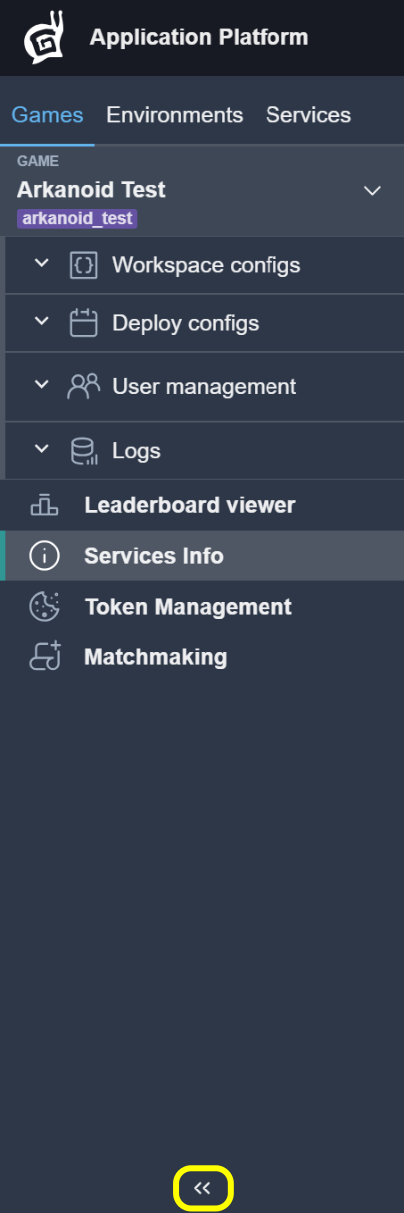
After selecting a game, the main menu provides access to the core Dev Portal features.
The following sections are available:
Workspace configs — Manage game configurations.
Deploy configs — Configure deployment parameters.
User Management — Manage player profiles and user accounts.
Logs — View system and application logs.
Leaderboard — View leaderboards.
Services Info — View information about connected services
Token Management — Manage authentication tokens.
Matchmaking — Configure and monitor matchmaking settings.
Tip
Use the Collapse and Expand buttons to hide or show the side navigation menu.