Deploy Configs
The Deploy Configs section is used to manage, validate, compare, and deploy configuration sets (tags) to services.
To open this section, select the corresponding menu item.
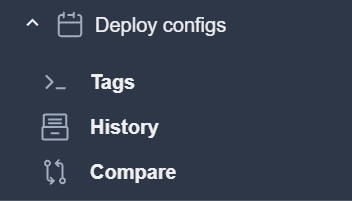
The Deploy Configs window consists of three main sections:
Tags
History
Compare
Note
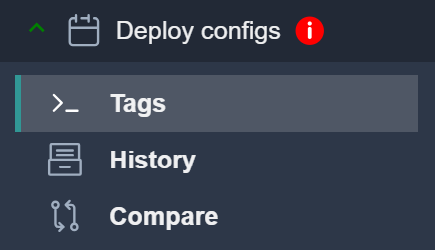
If the working copy has undeployed changes, you will see a warning
Tags
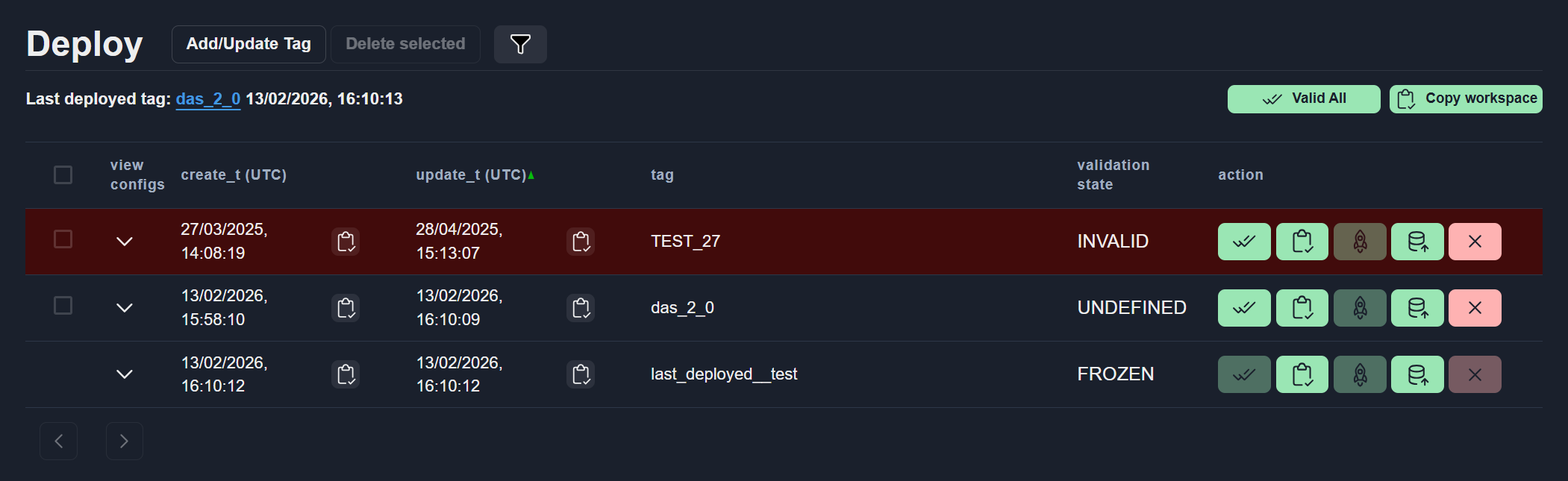
Each tab in the Tags section allows you to:
Create and update tags
Upload configurations from an existing tag
Export configurations from a tag
Validate and deploy configurations
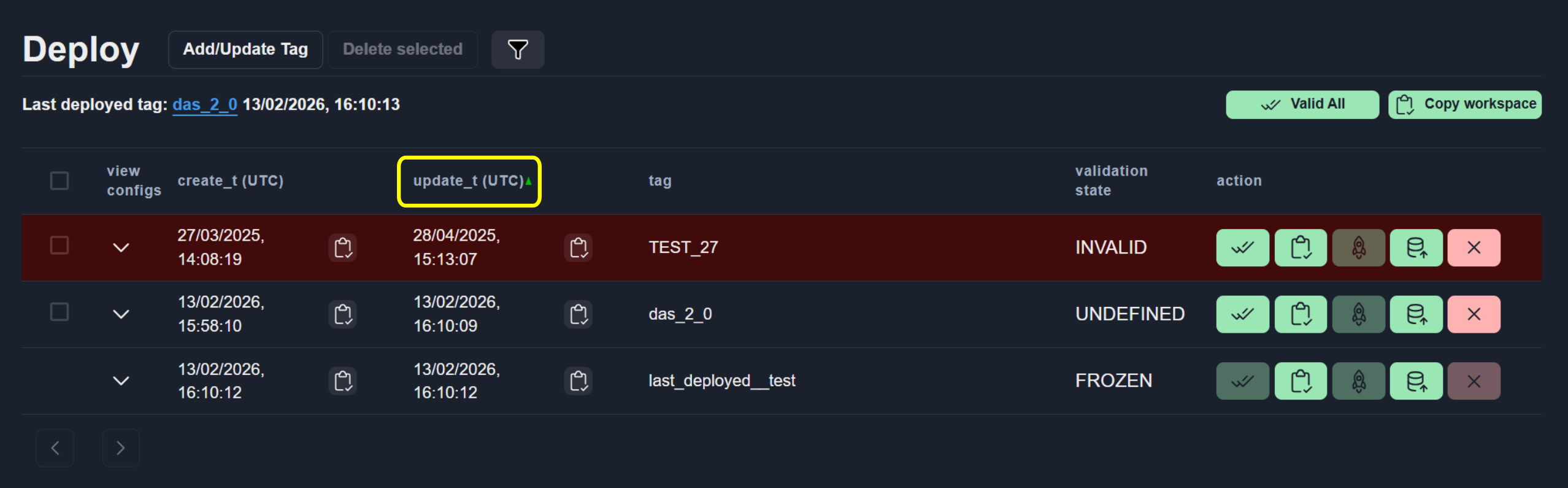
Sort Tags
To sort the tags table, click a column header.
Add New or Update Tag
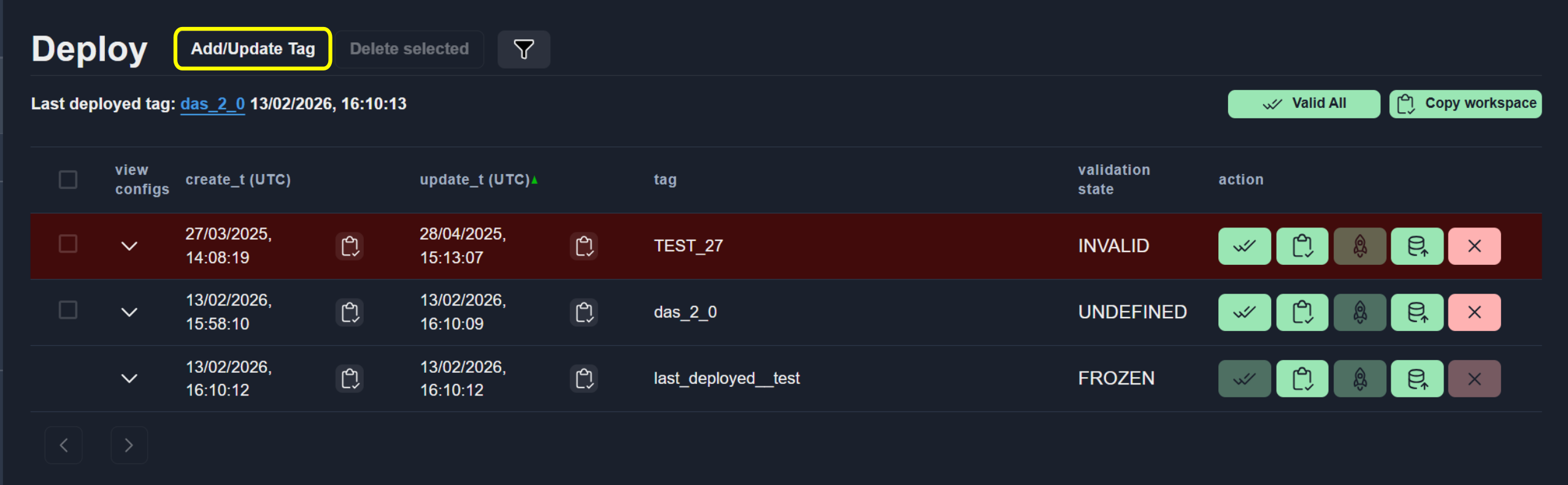
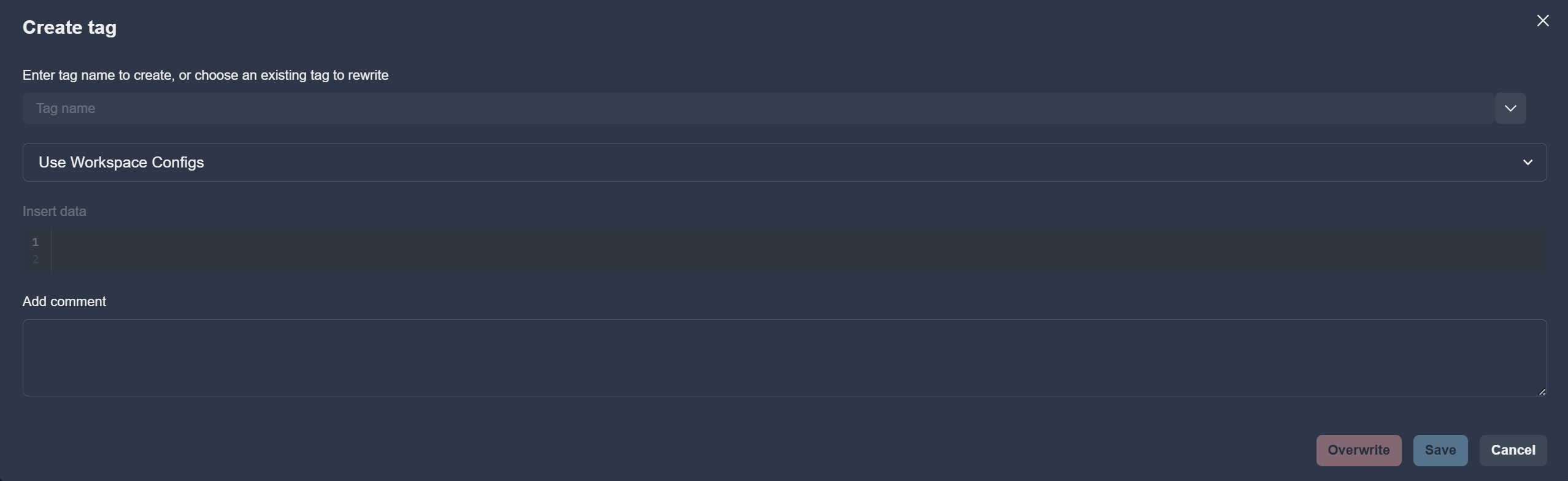
To create a new tag or update an existing one, click Add/Update Tag.
Note
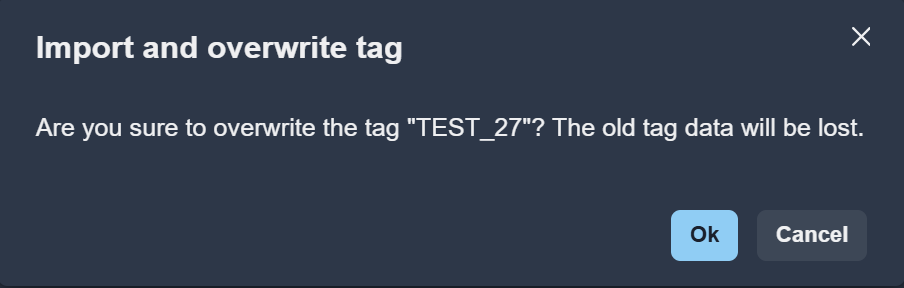
To overwrite an existing tag, enter its name manually or select it from the list.
Select Tag Data Source
Use the Source selector to choose where the tag data should be taken from:
Use Workspace configs — use the configs from Workspace to create tag
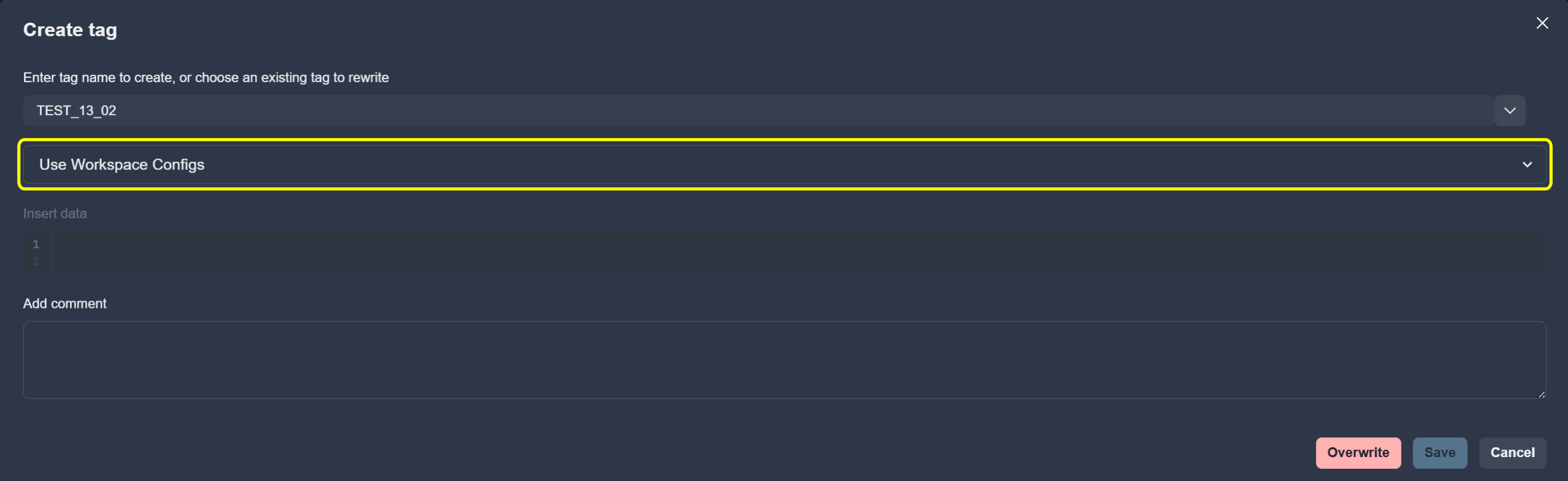
Import tag data — use data from another tag
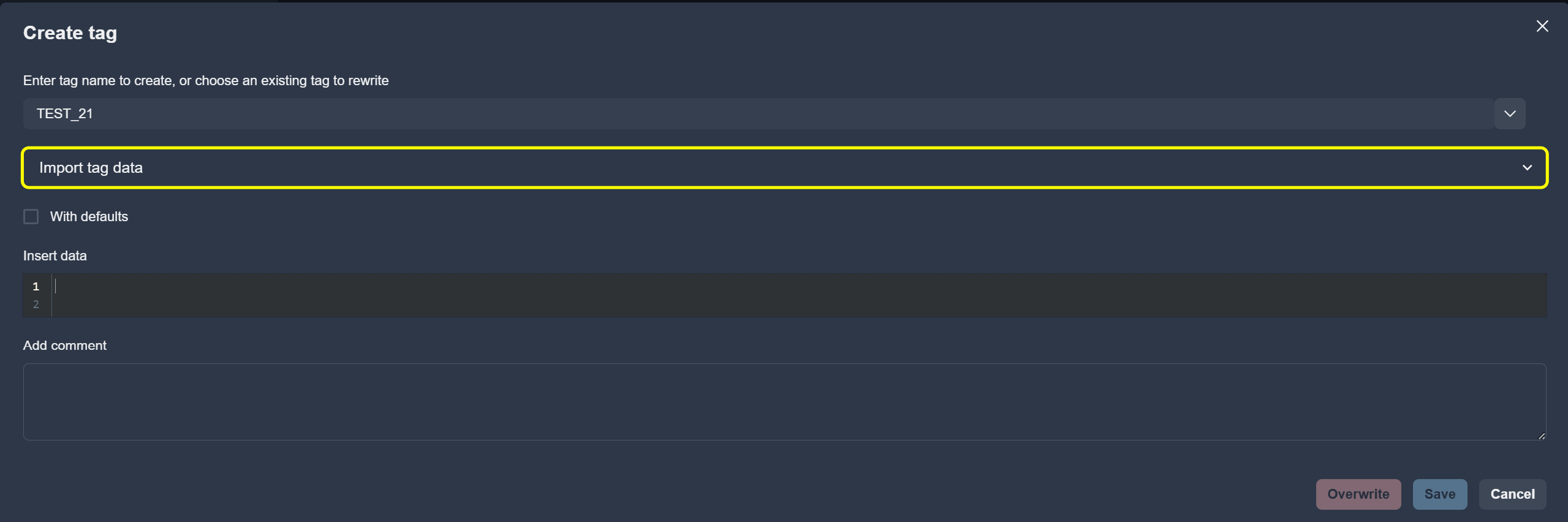
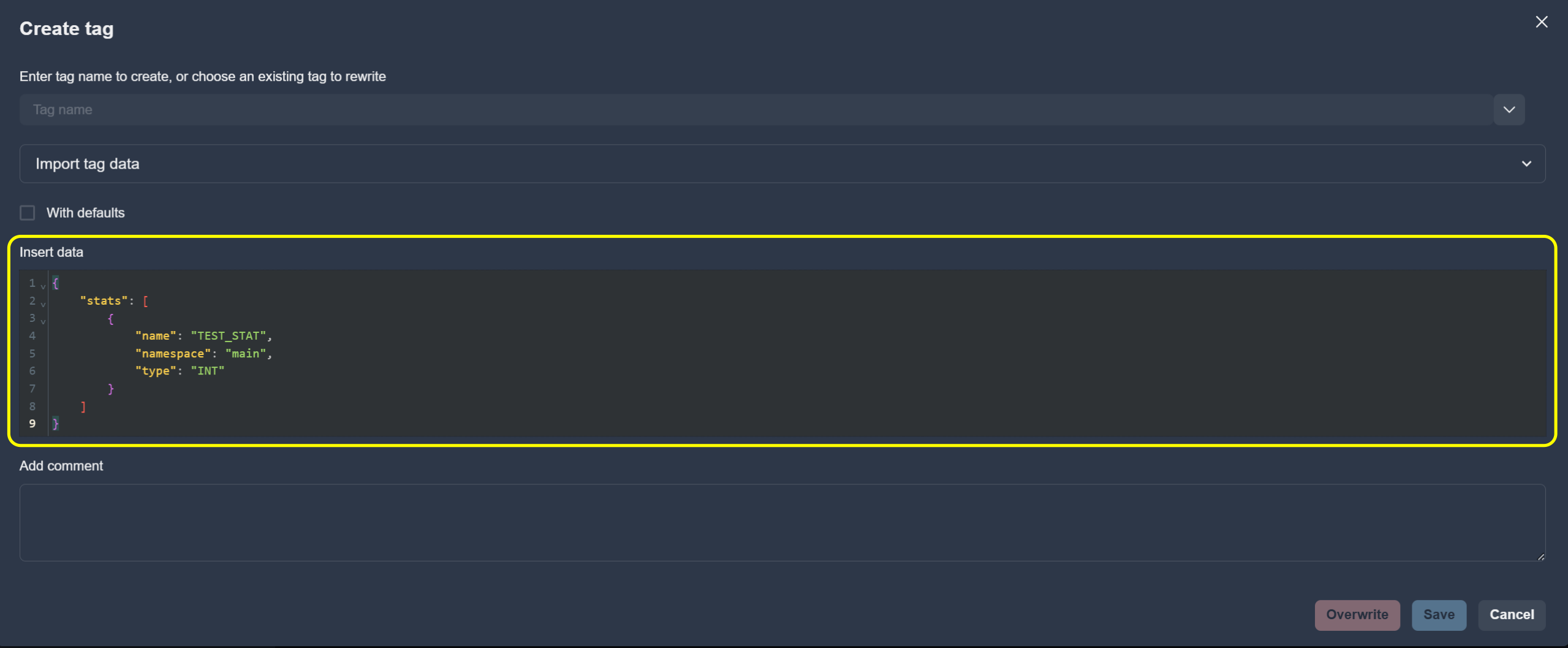
Edit Tag Data
To modify the tag data use the editor.
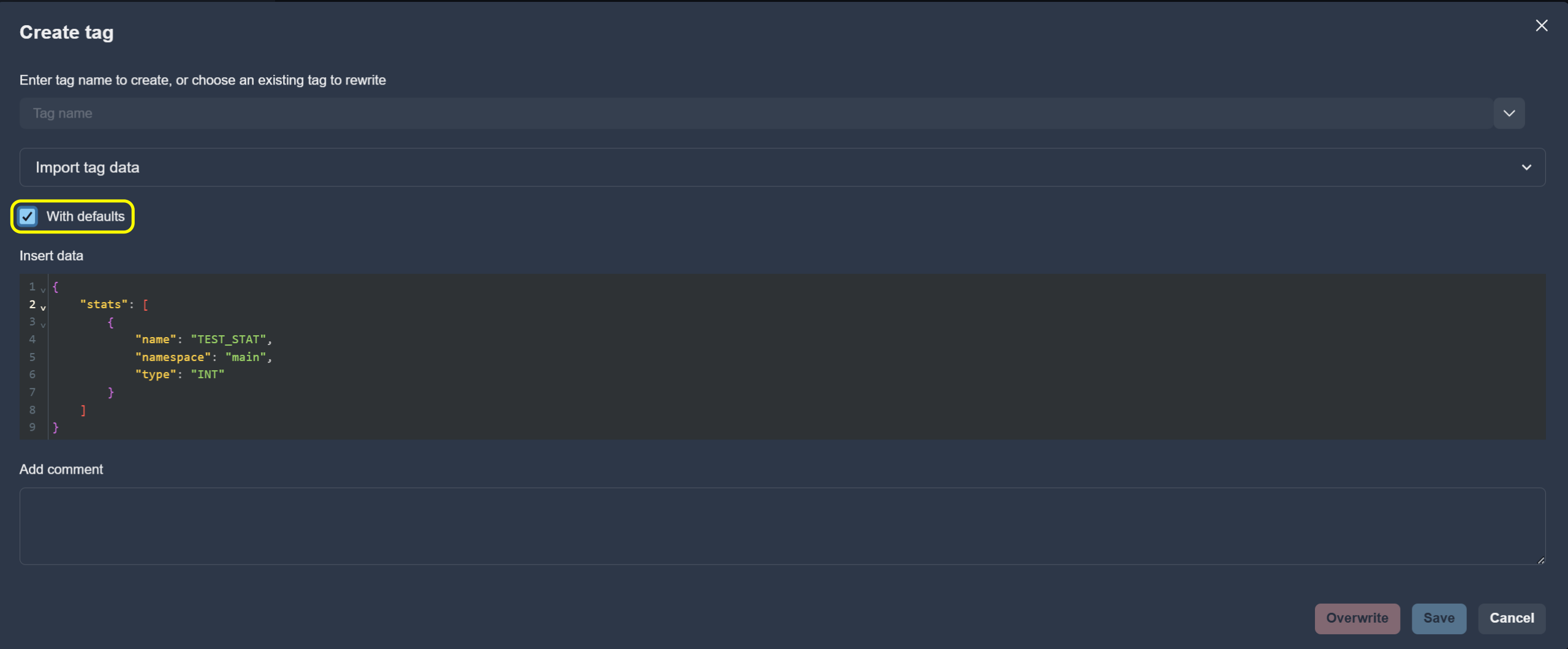
Enable With defaults to include default values.
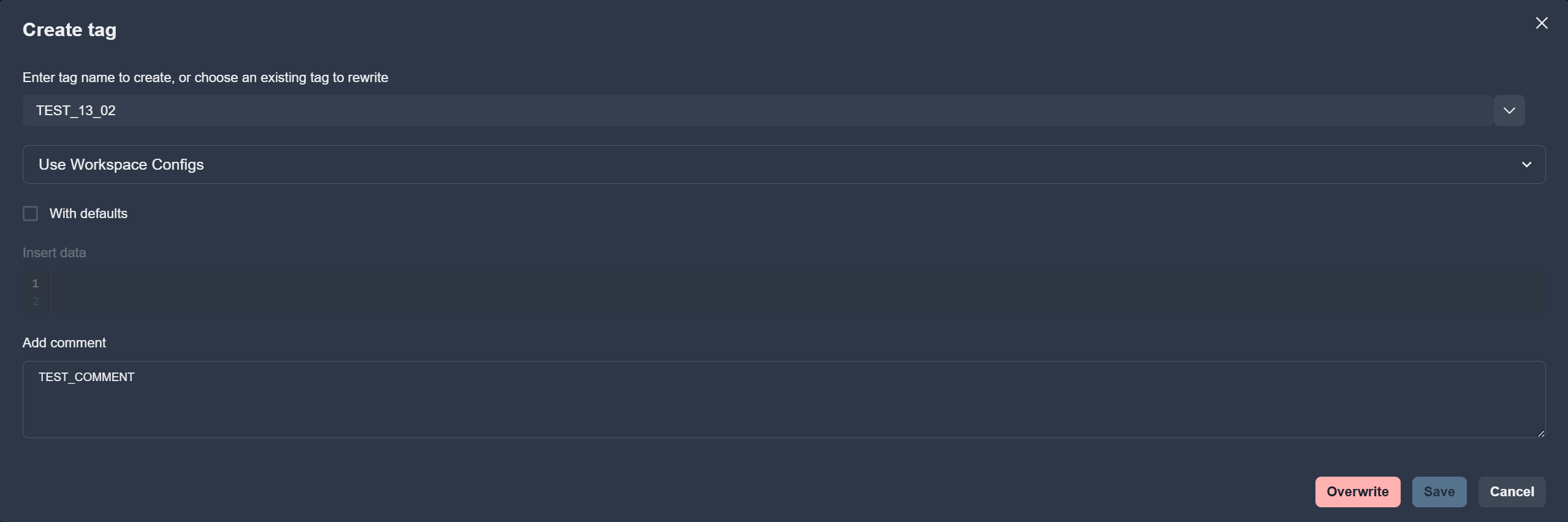
Add a description in the Add comment field.
Filter Tags
Use the filter input to narrow down the tags list.
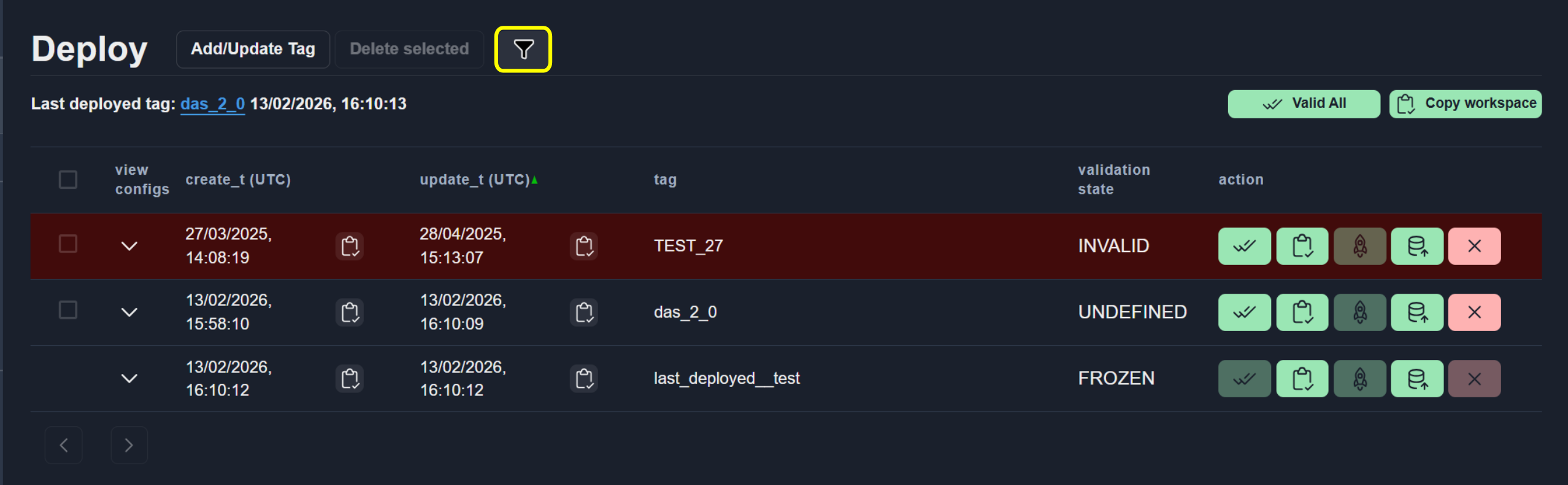
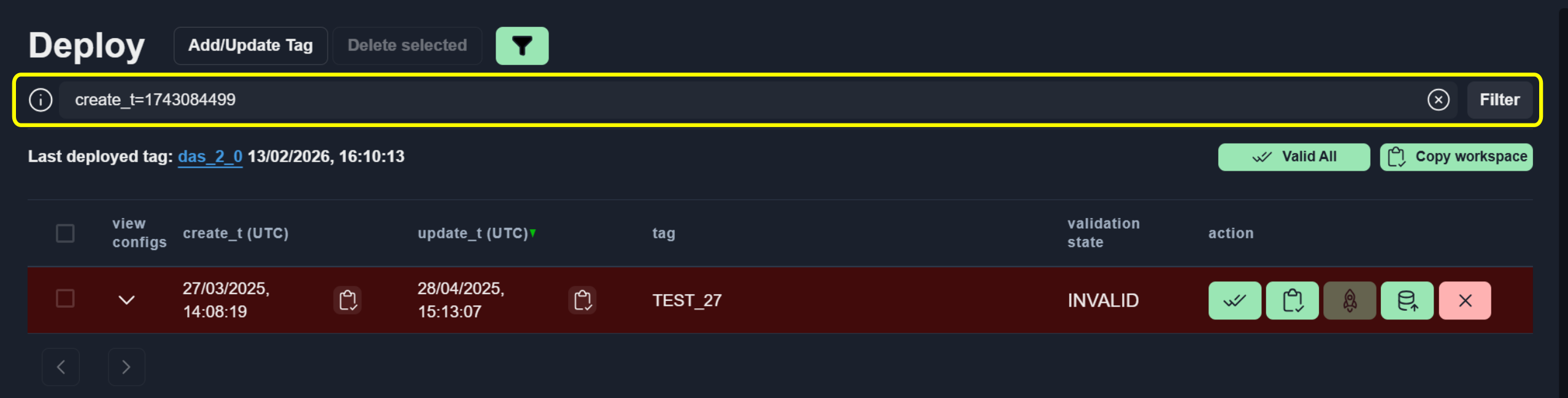
To filter by time:
Copy the
create_torupdate_tvalue as a timestamp.Paste it into the filter input.

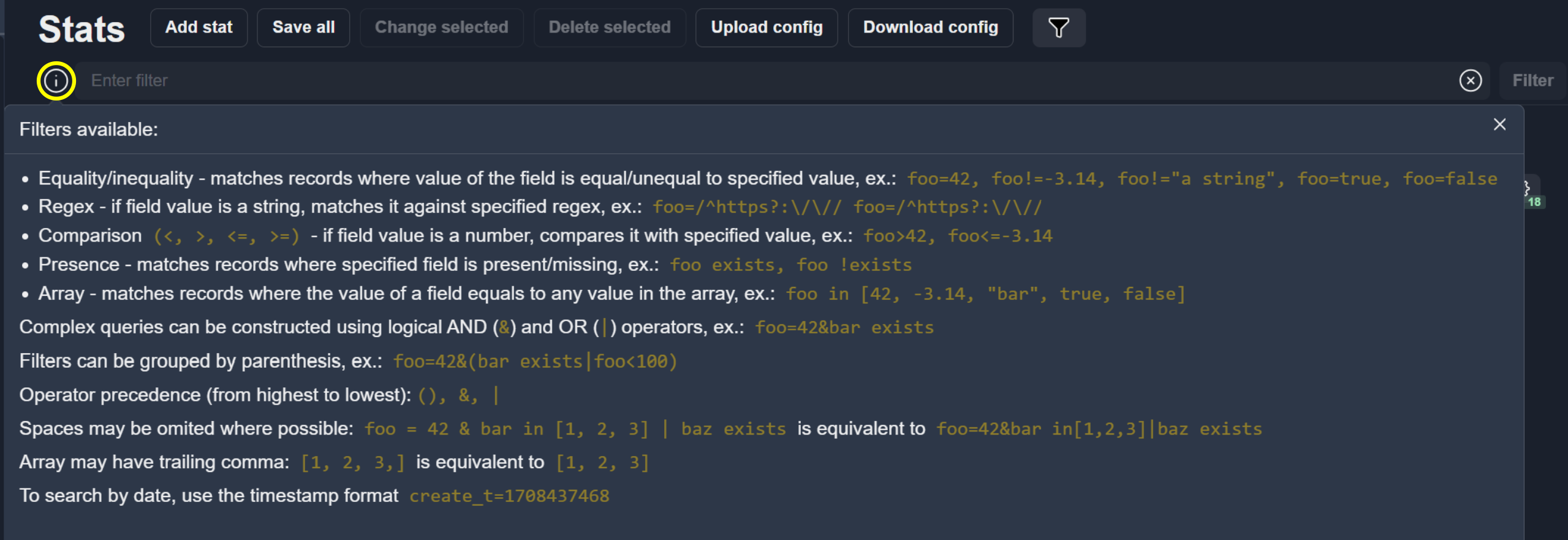
Click the Help icon to view filtering hints.
To clear all filters, click Clear Filter.

Validate Tags
To validate a single tag, click the Validate button.

To validate all tags in the list, click the Valid All button.

If validation errors occur, they are displayed in the Validation Errors section.
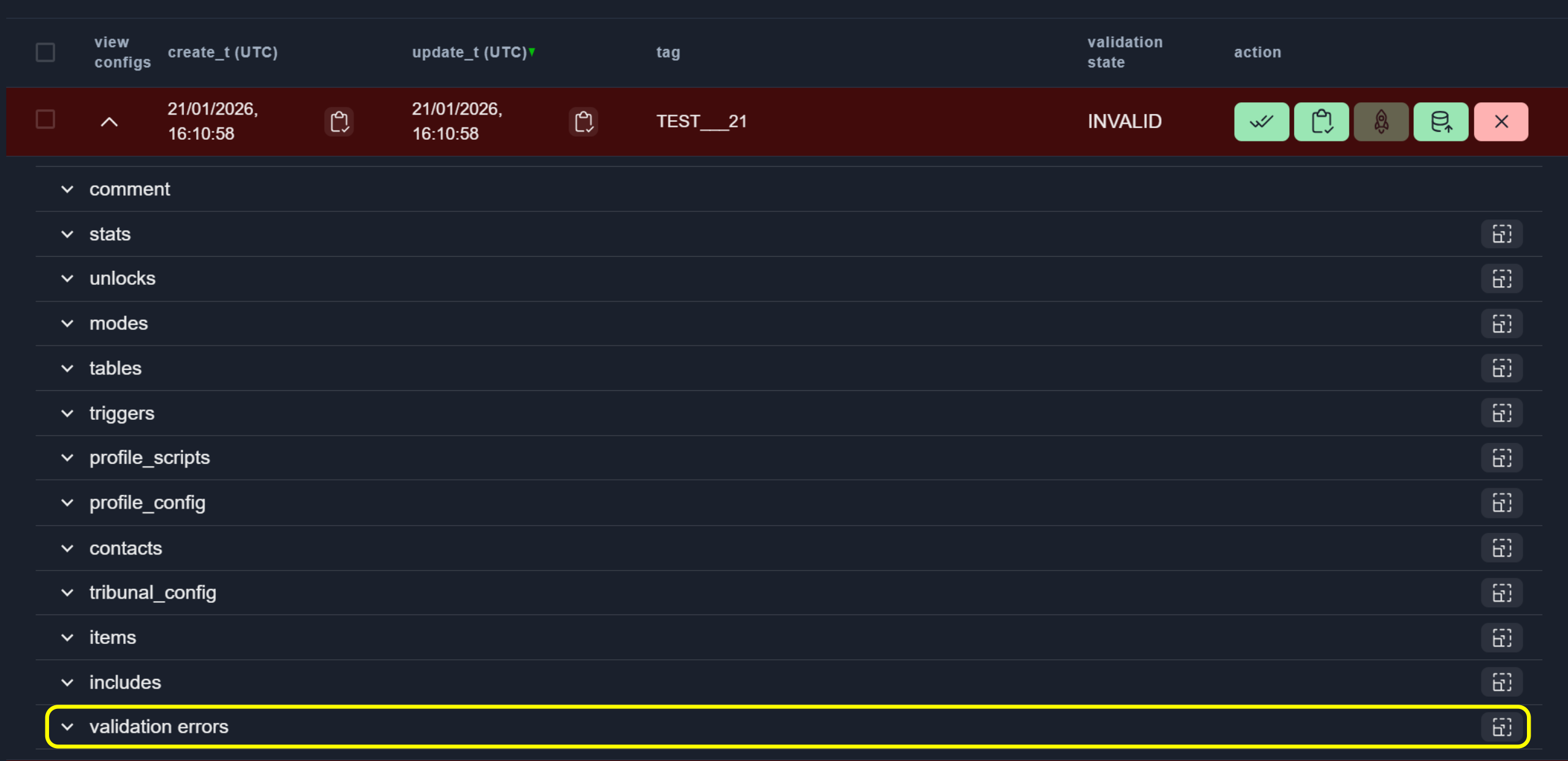

Validation status is also indicated by the background color of each row.

Copy Configs to Buffer
To copy configurations from a tag to the buffer, click Copy to Buffer.
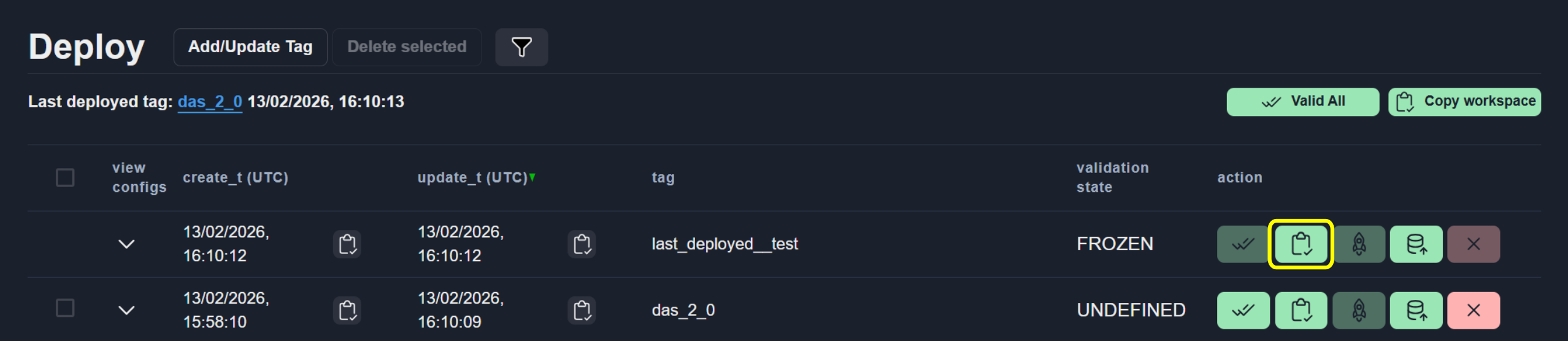
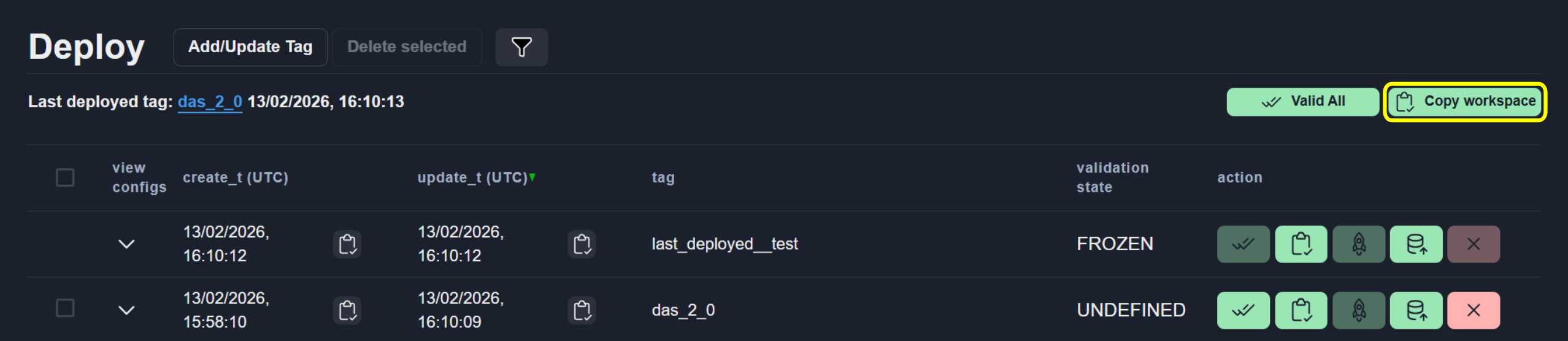
You can also copy workspace configs to the buffer.
Tip
This is useful for transferring configurations between different game environments (test, staging, production) or between different games.
Restore Configs from Tag
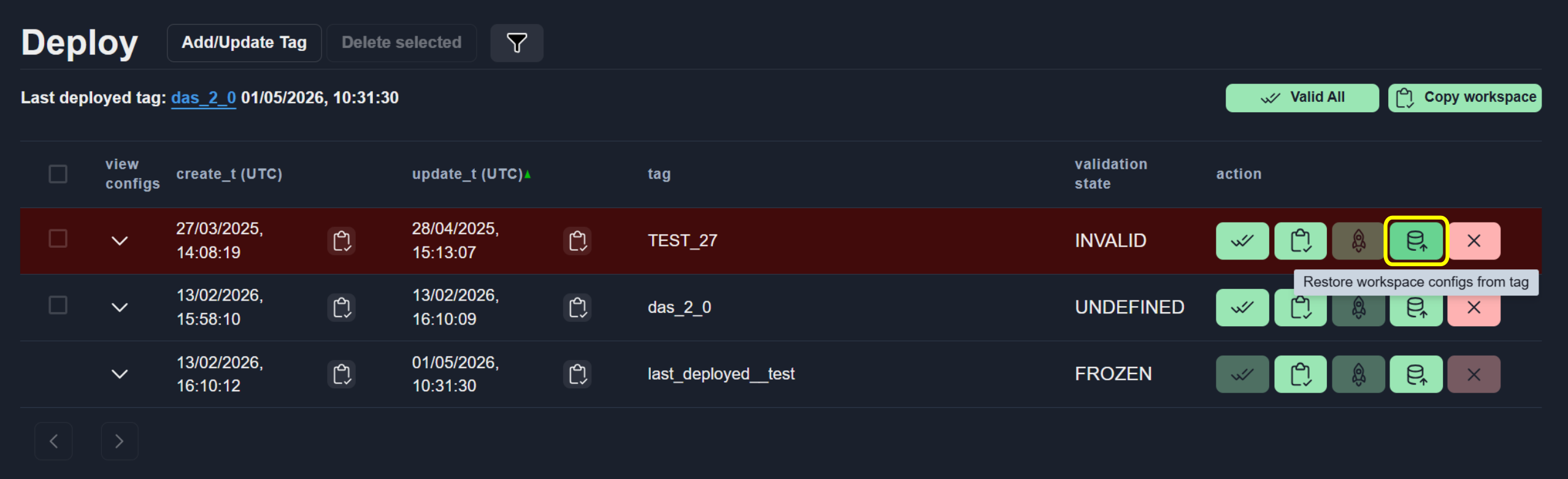
To replace workspace configurations from a tag, click Set current from tag button.
Delete Tags
To delete a single tag, click Delete.

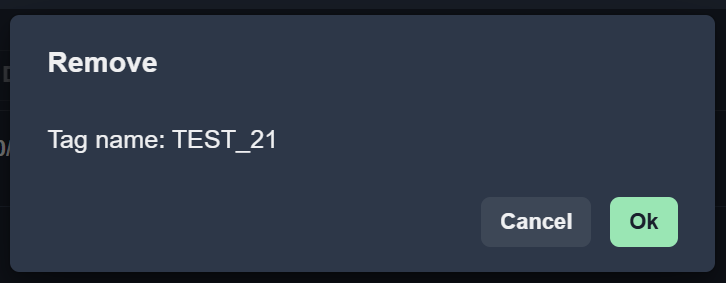
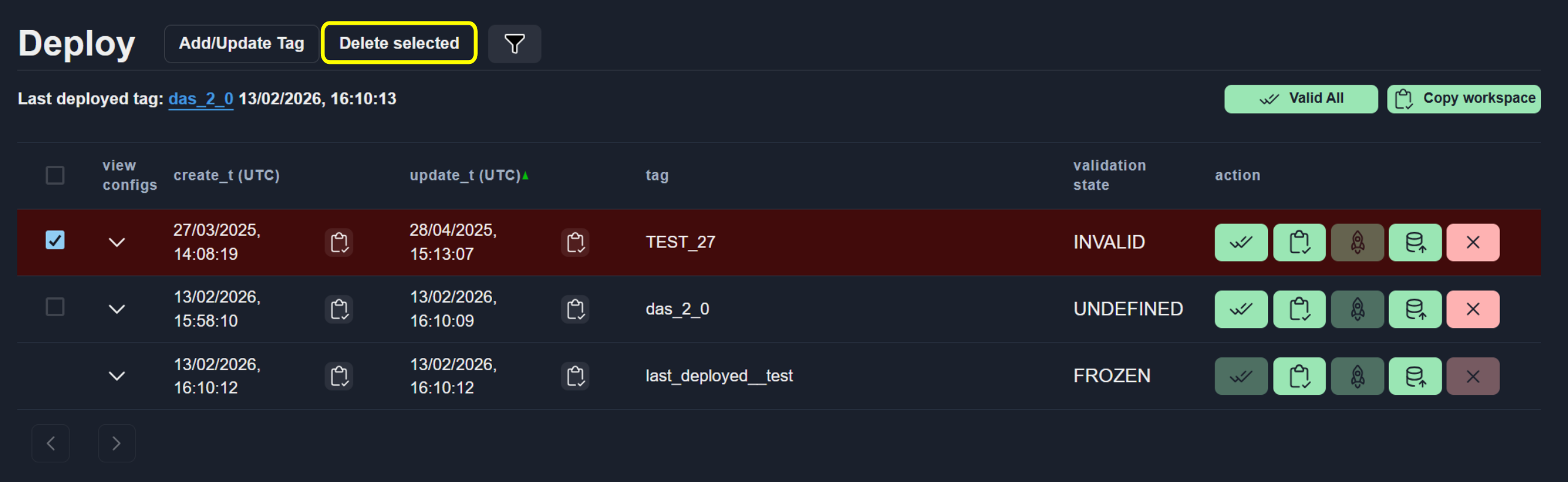
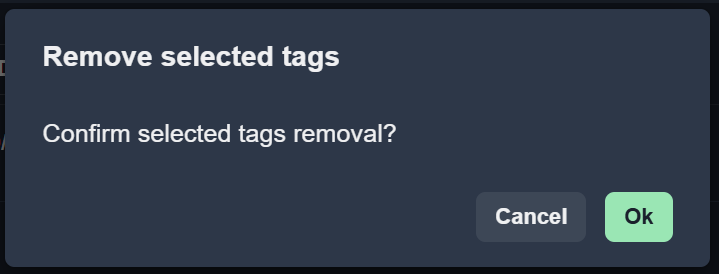
To delete multiple tags:
Select the required rows.
Click Delete selected.
View Tag Configs
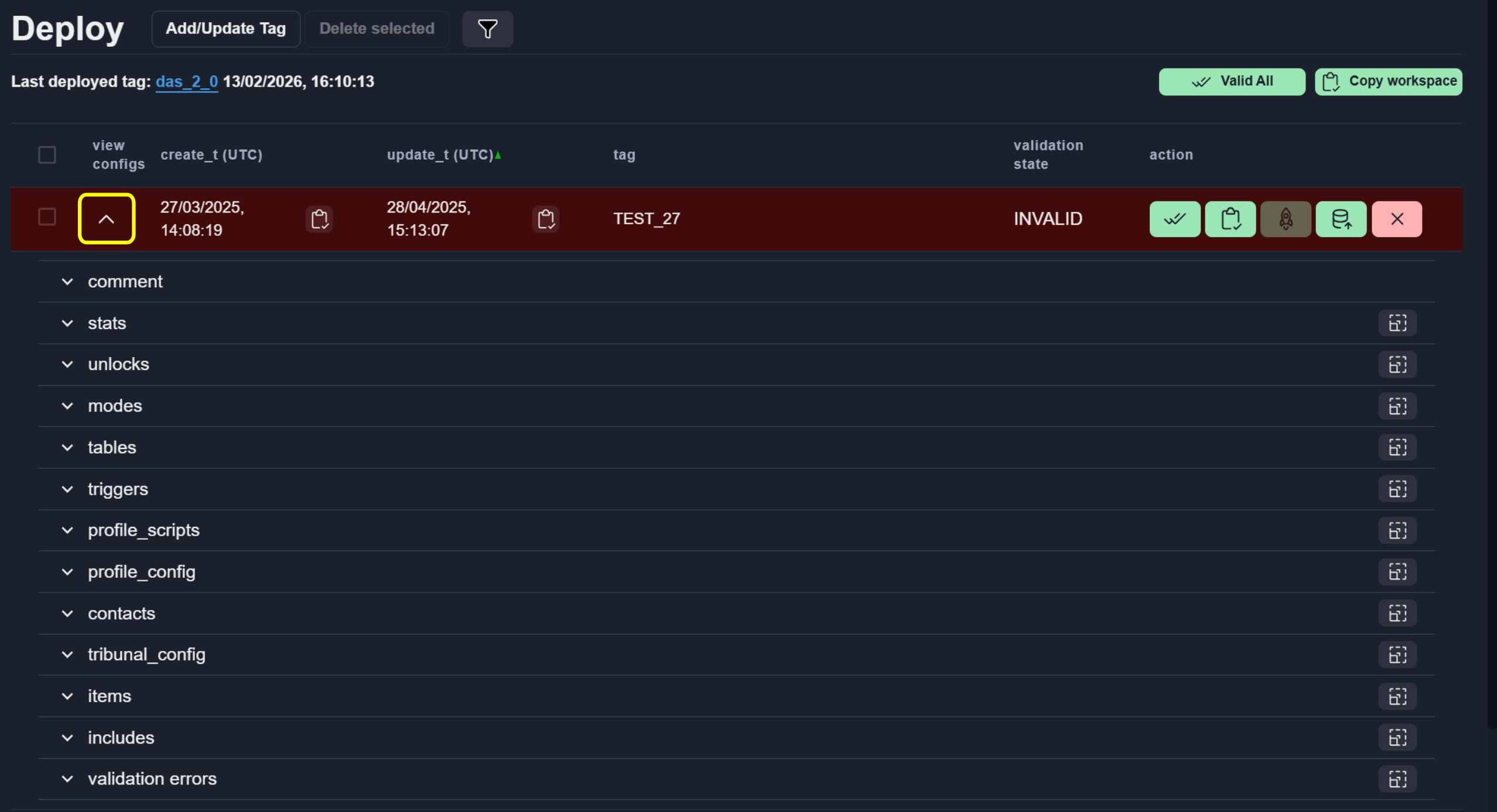
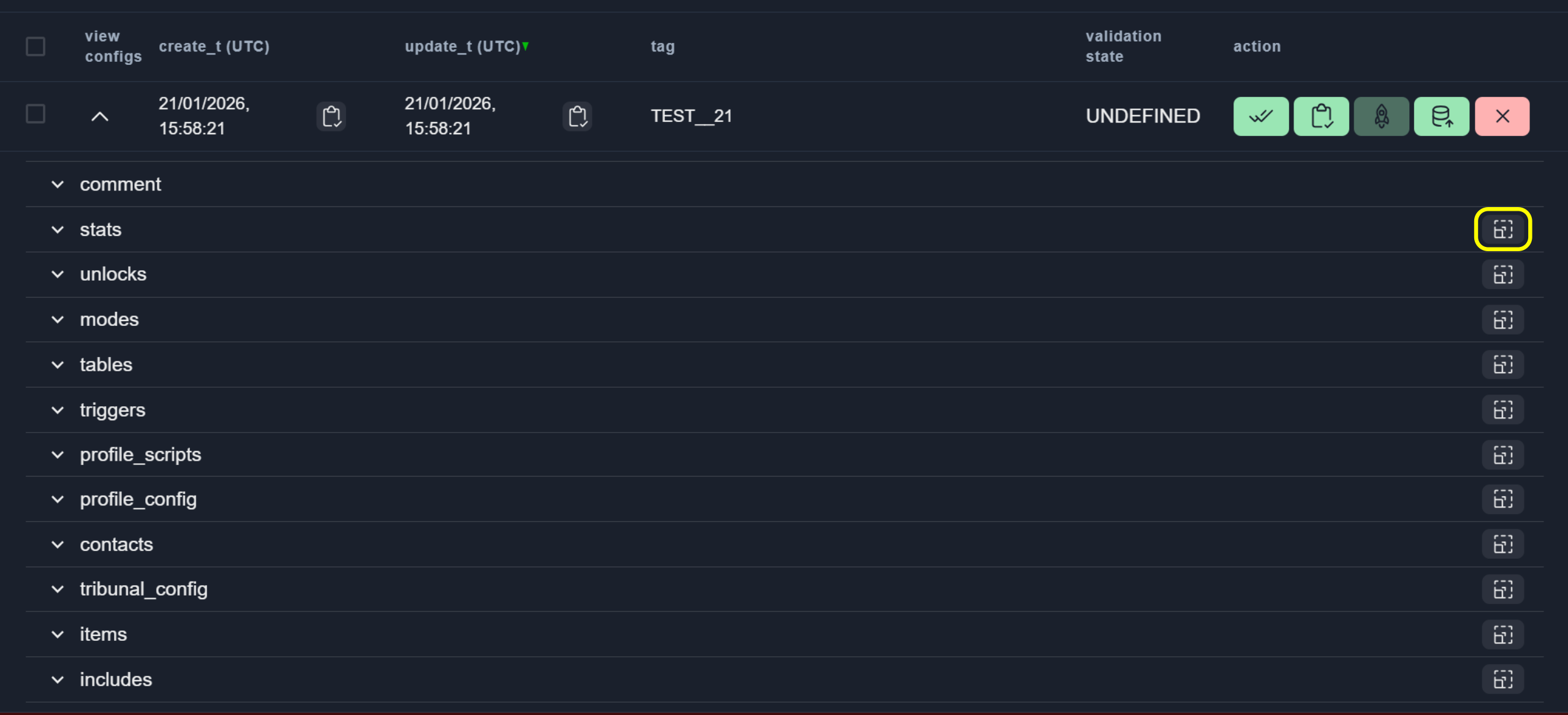
Click the expand (arrow) button to display the configurations of a tag. Configurations are grouped by sections.
To open a configuration, click the section name.
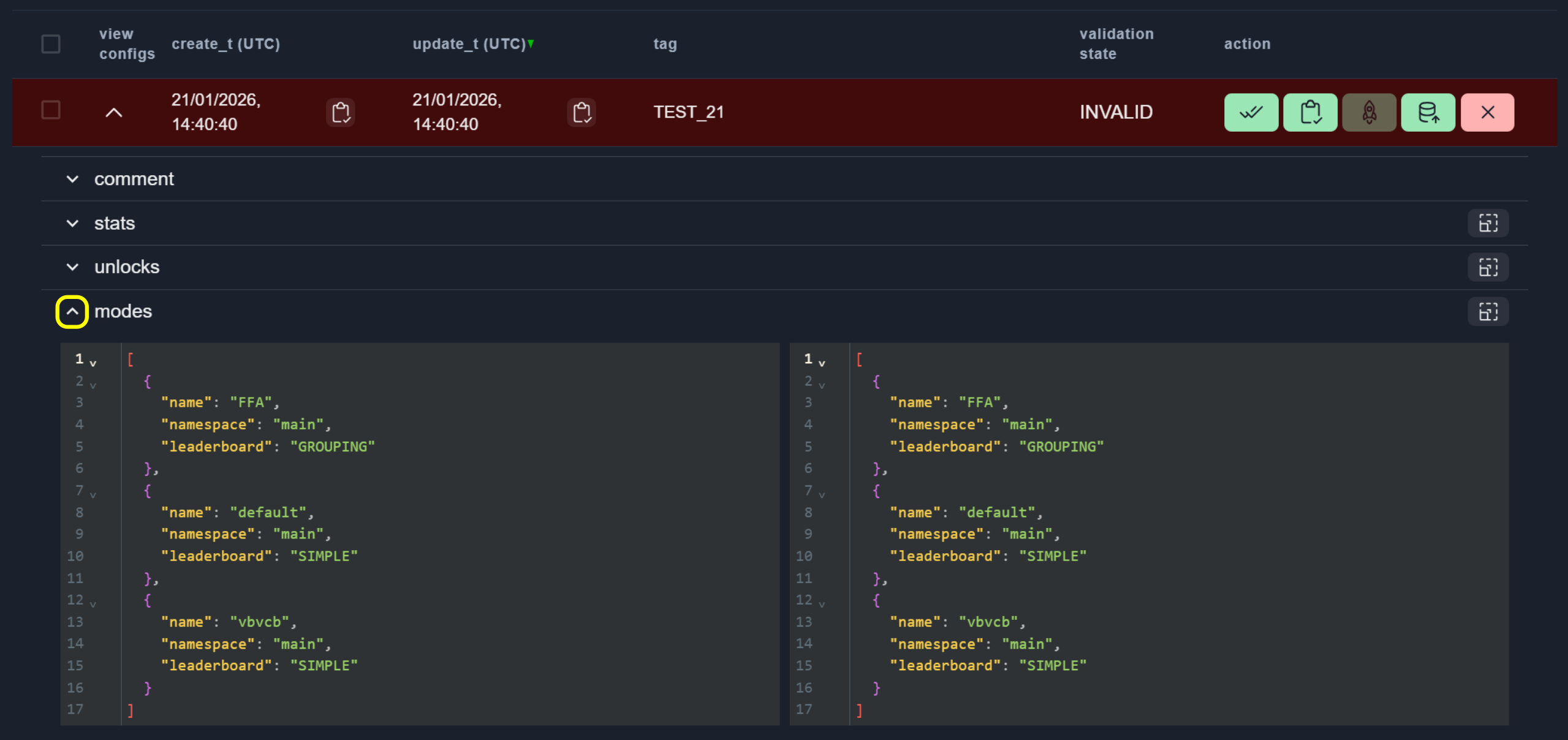
You can also view the resolved block after it includes elements.

See also
For more information, see Includes.
To open the configuration in full-screen mode, click Full Screen.
Editing Tag Comments
To edit comment open the Comments section, enter desired text, and click th Save button.

Deploy Configs from Tag
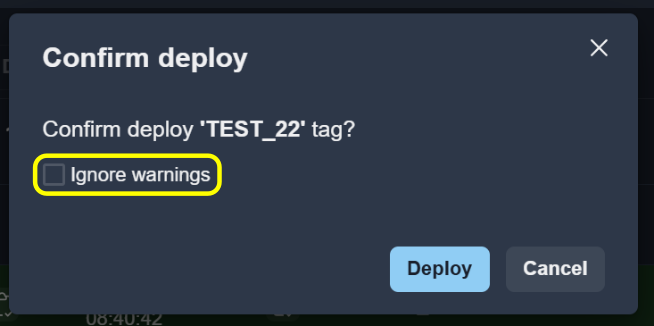
To deploy configs from a tag, click the Deploy button and confirm the deployment.

To ignore warnings during deployment, enable Ignore warnings.
After deployment starts, progress and status information is displayed.
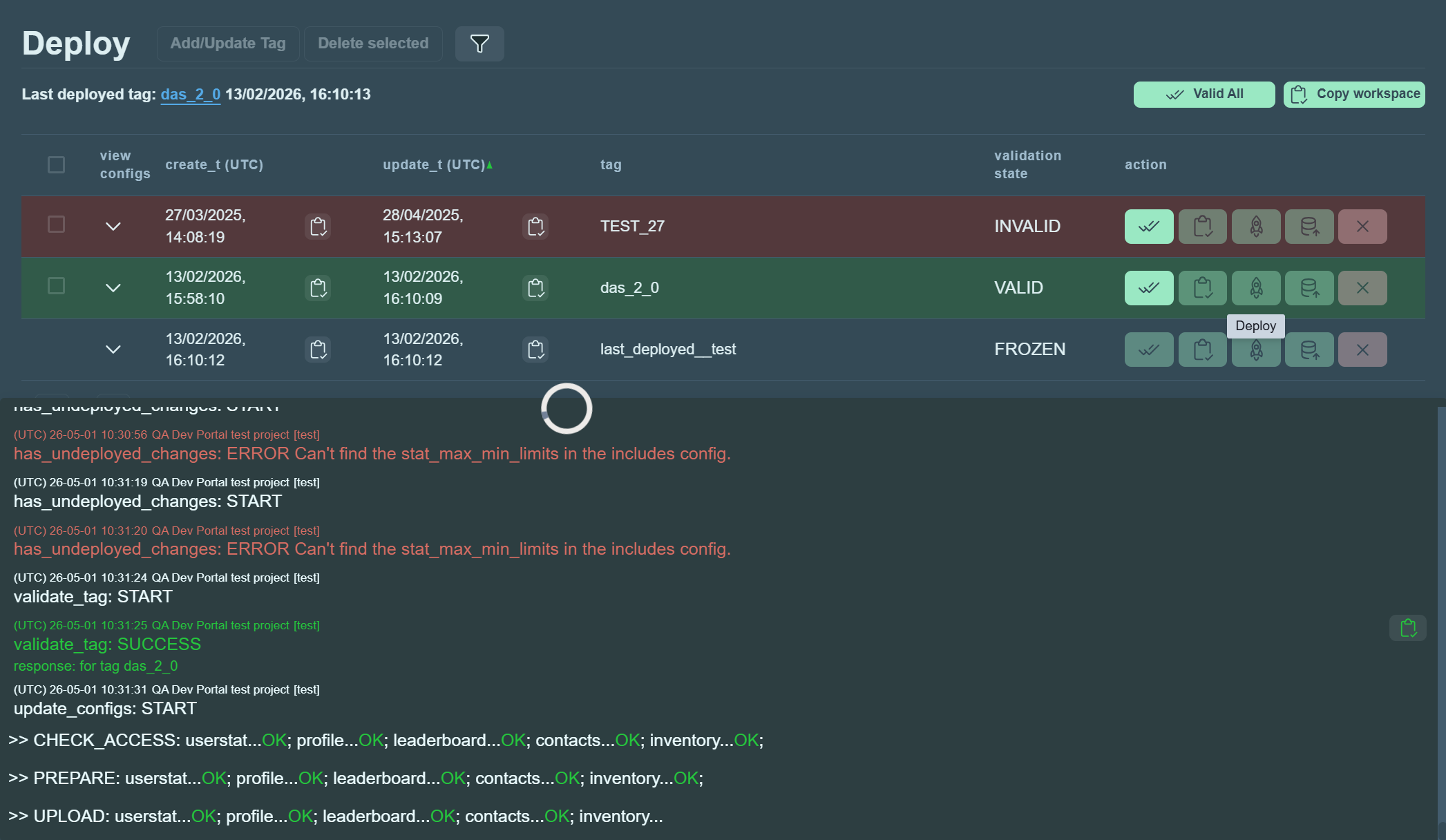
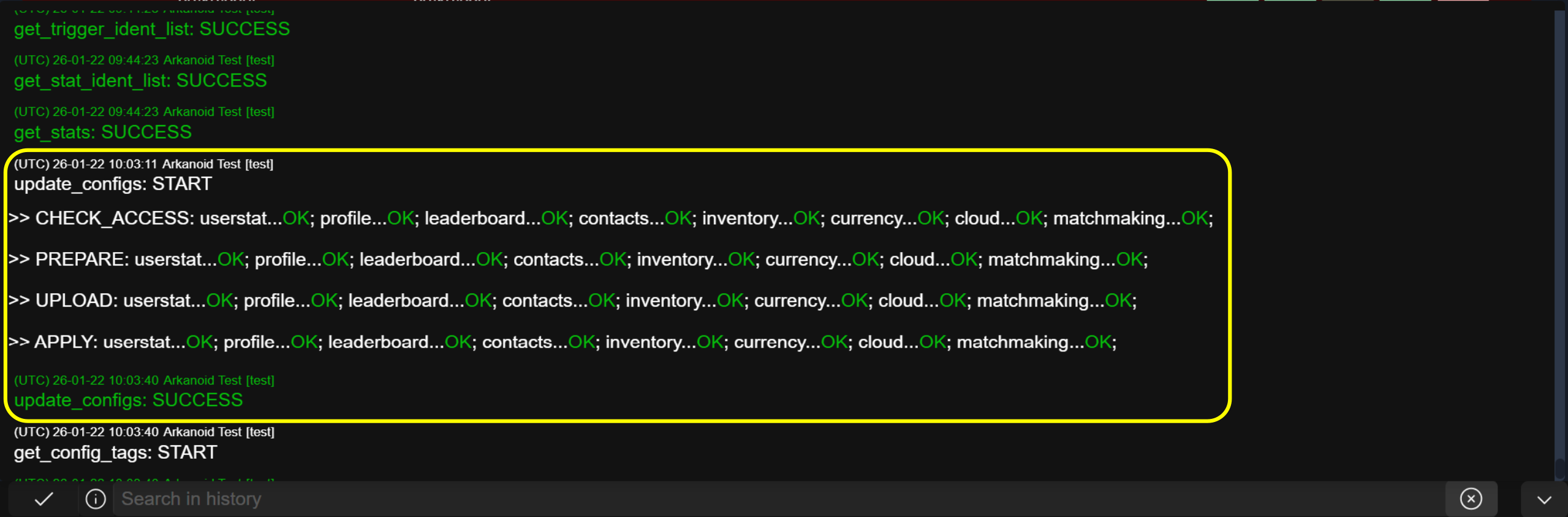
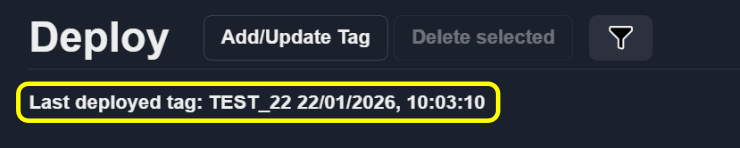
The most recently deployed tag is shown at the top of the tags list.
Note
Tags with the FROZEN status cannot be validated, deleted, or deployed.

History
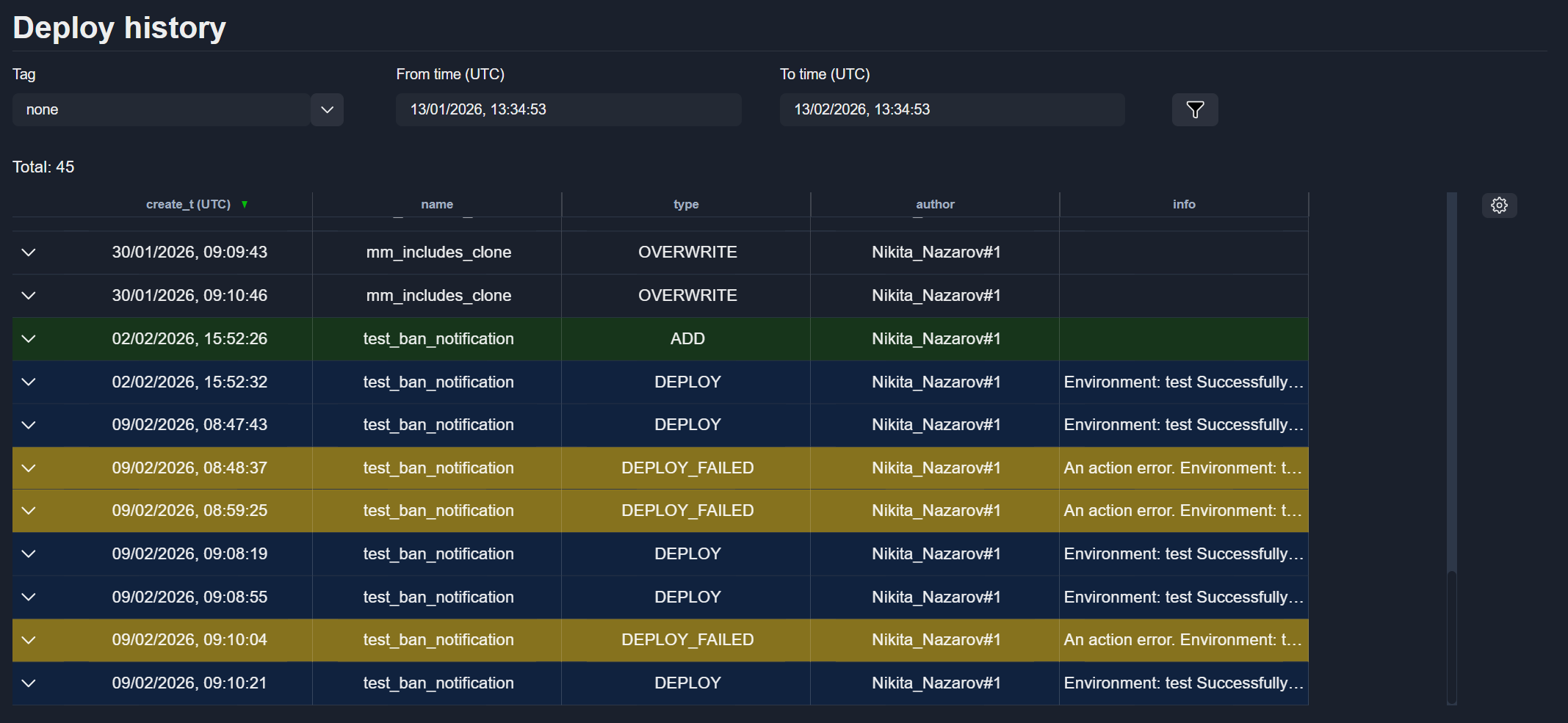
The History section displays a list of all deployment events.
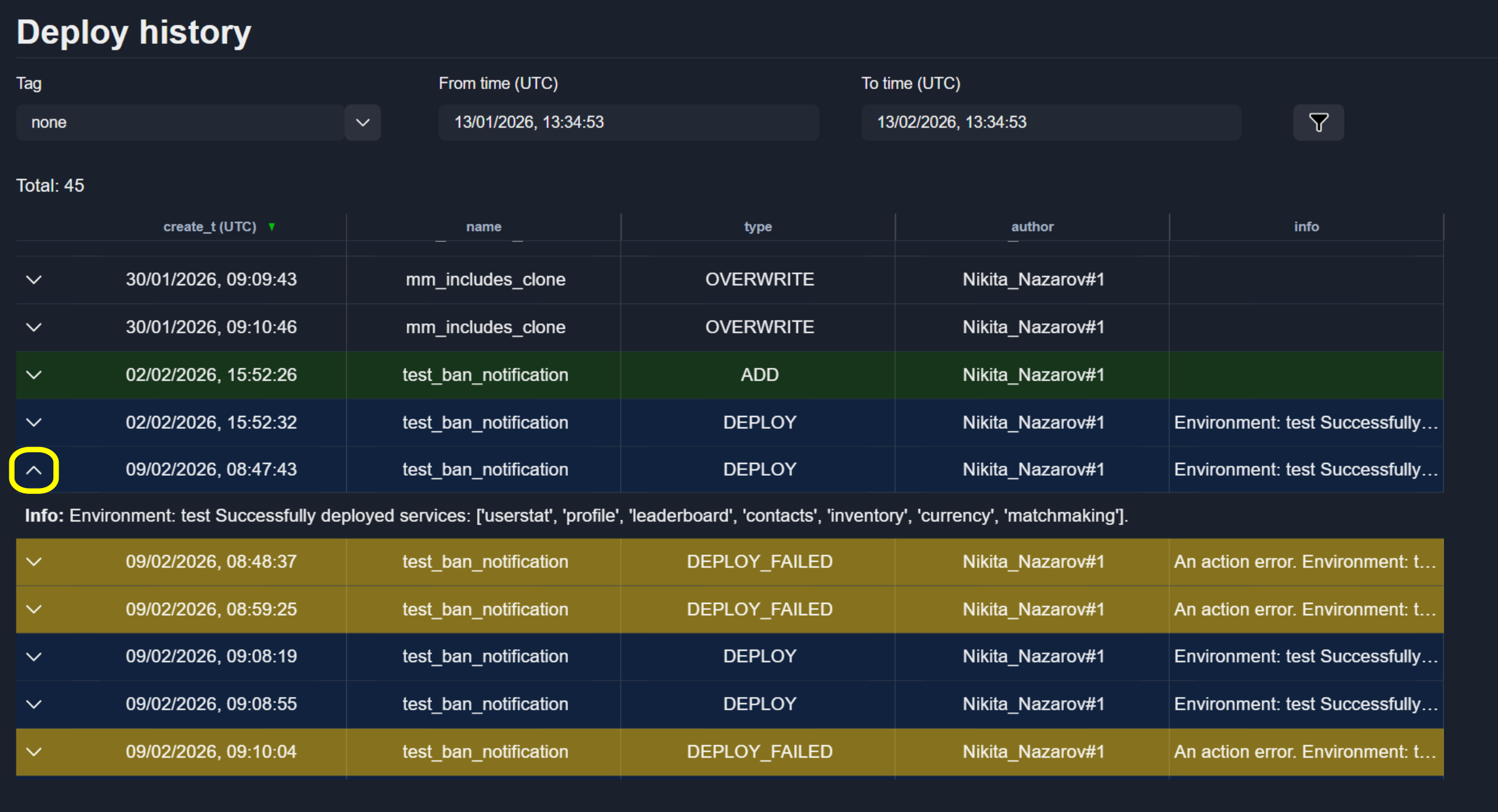
To see full information of a record from the history table, click the button.
Note
The visibility and ordering of columns follow the settings defined in Table Settings.
Filter History
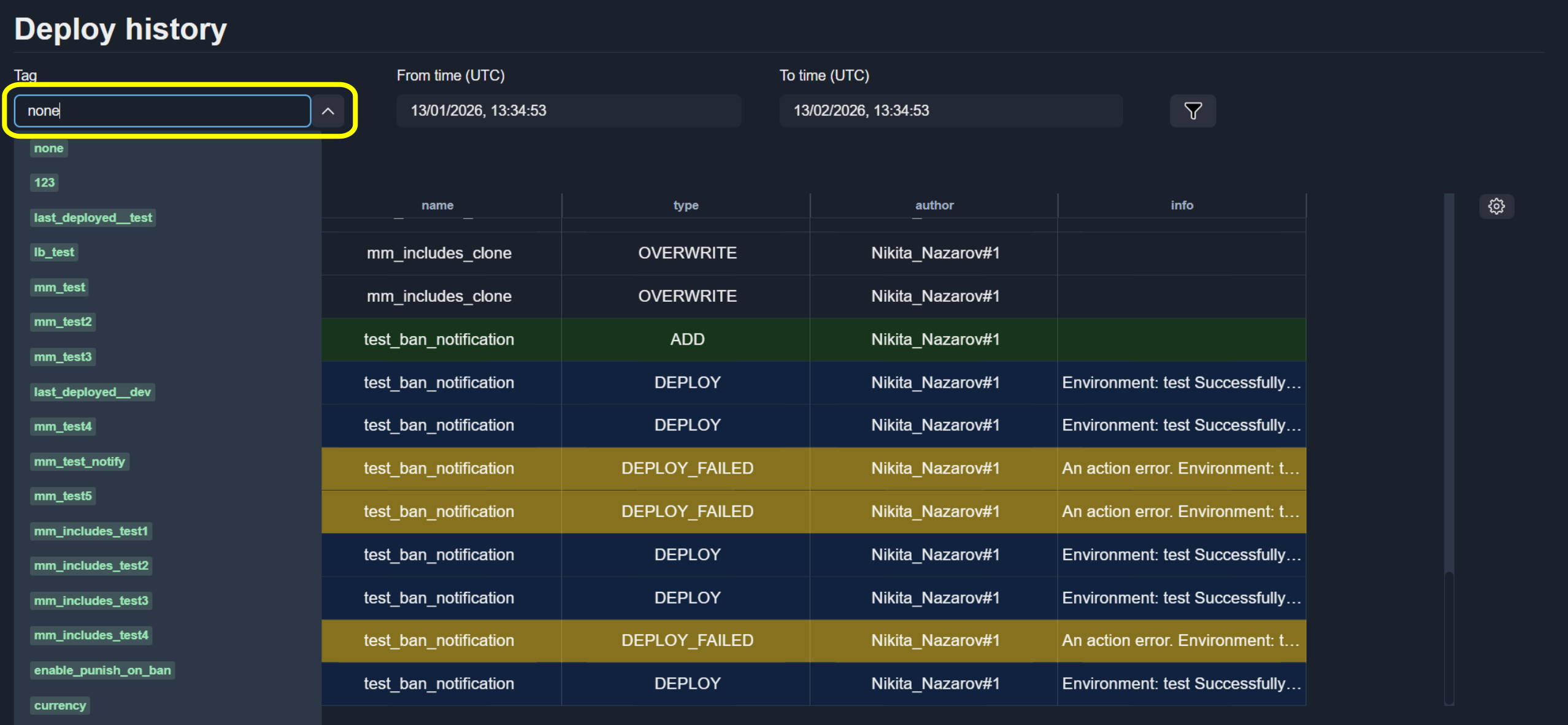
To filter history by tag, selecting a tag from the list.
To filter history by time range, use the date picker.
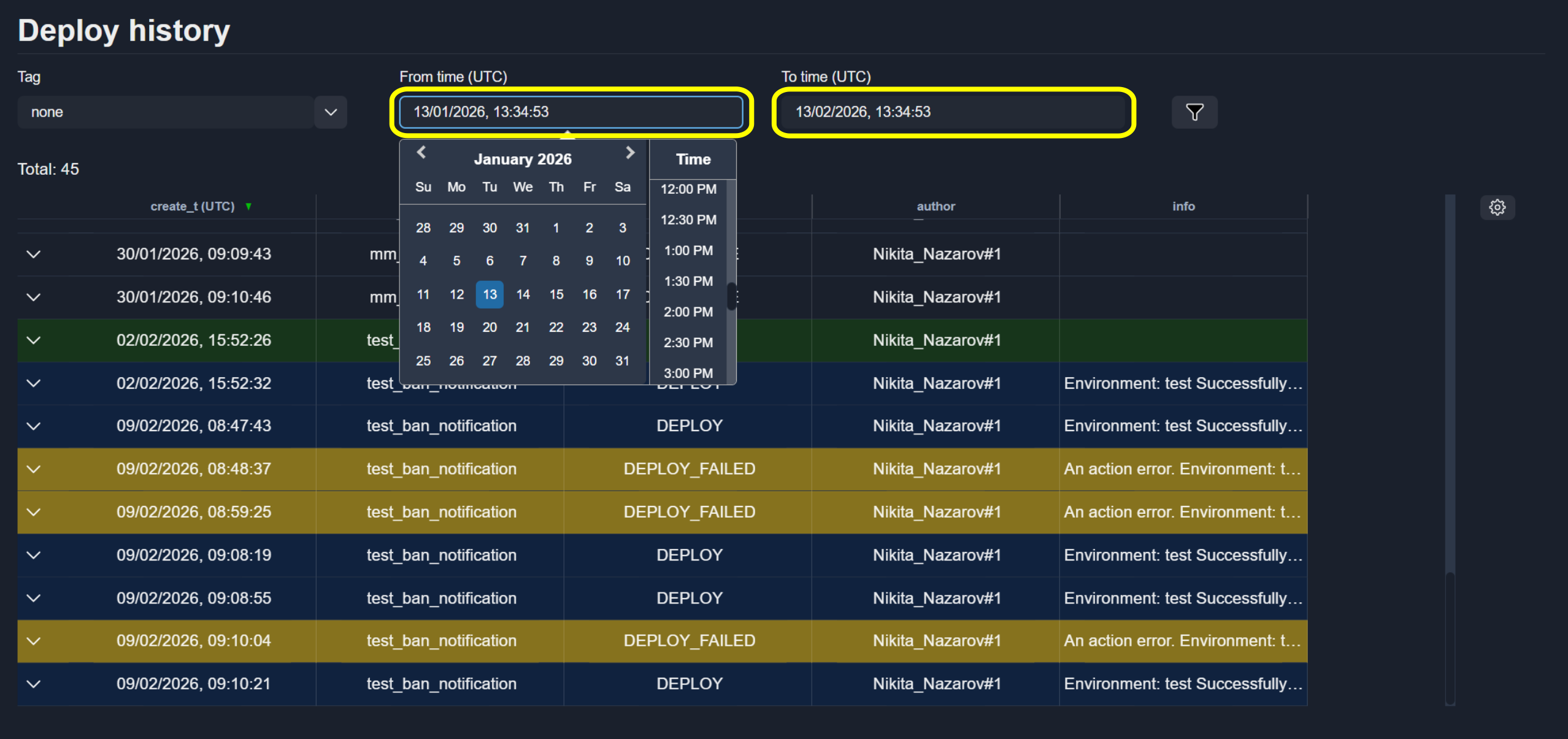
To filter history with additional filters, use the filter input.

Compare
The Compare section allows you to view differences between two tags.

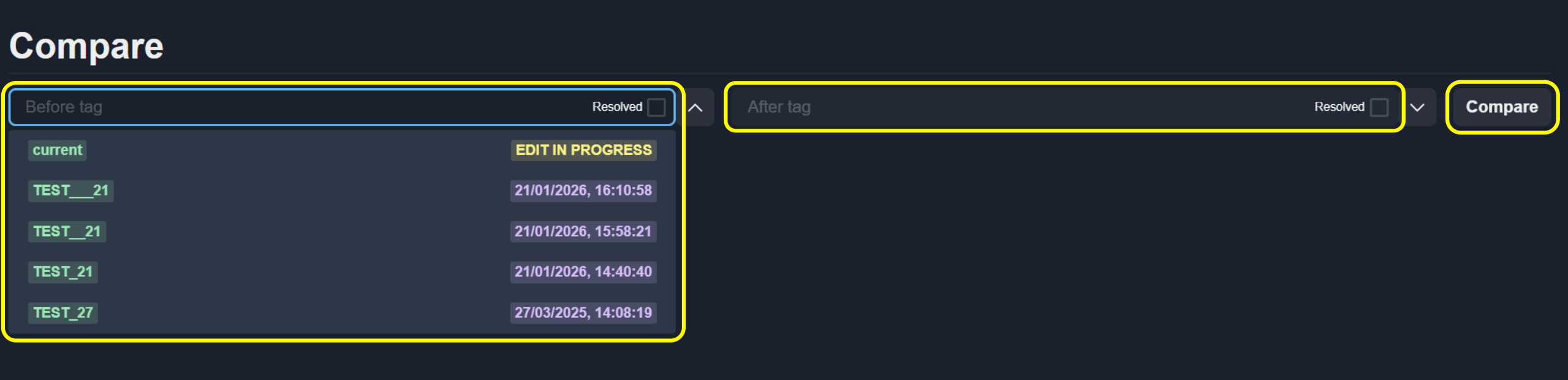
Compare Tags
To compare two tags:
Select the Before and After tags.
Click Compare.
View Differences
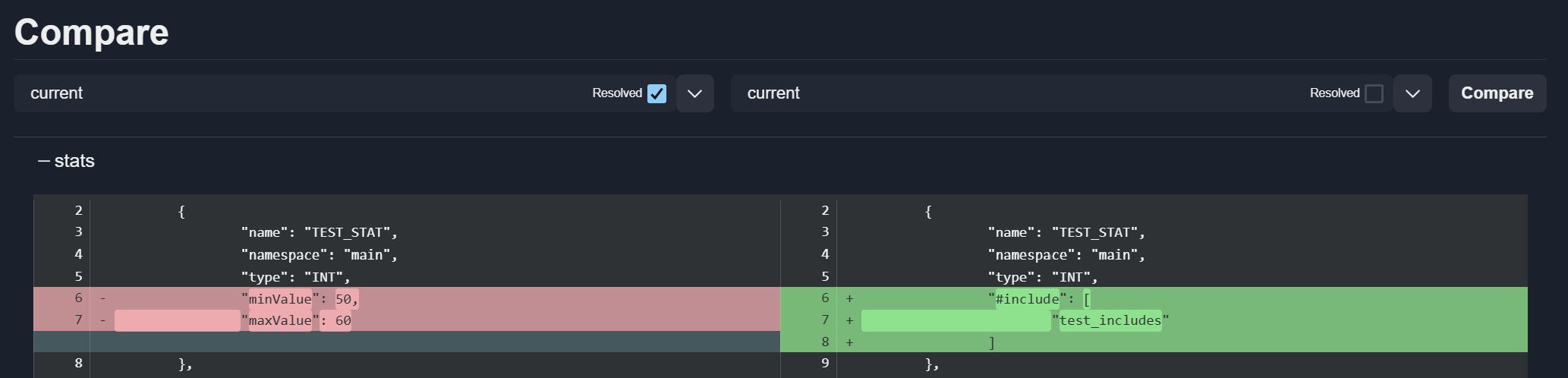
Comparison results are grouped by configuration sections.
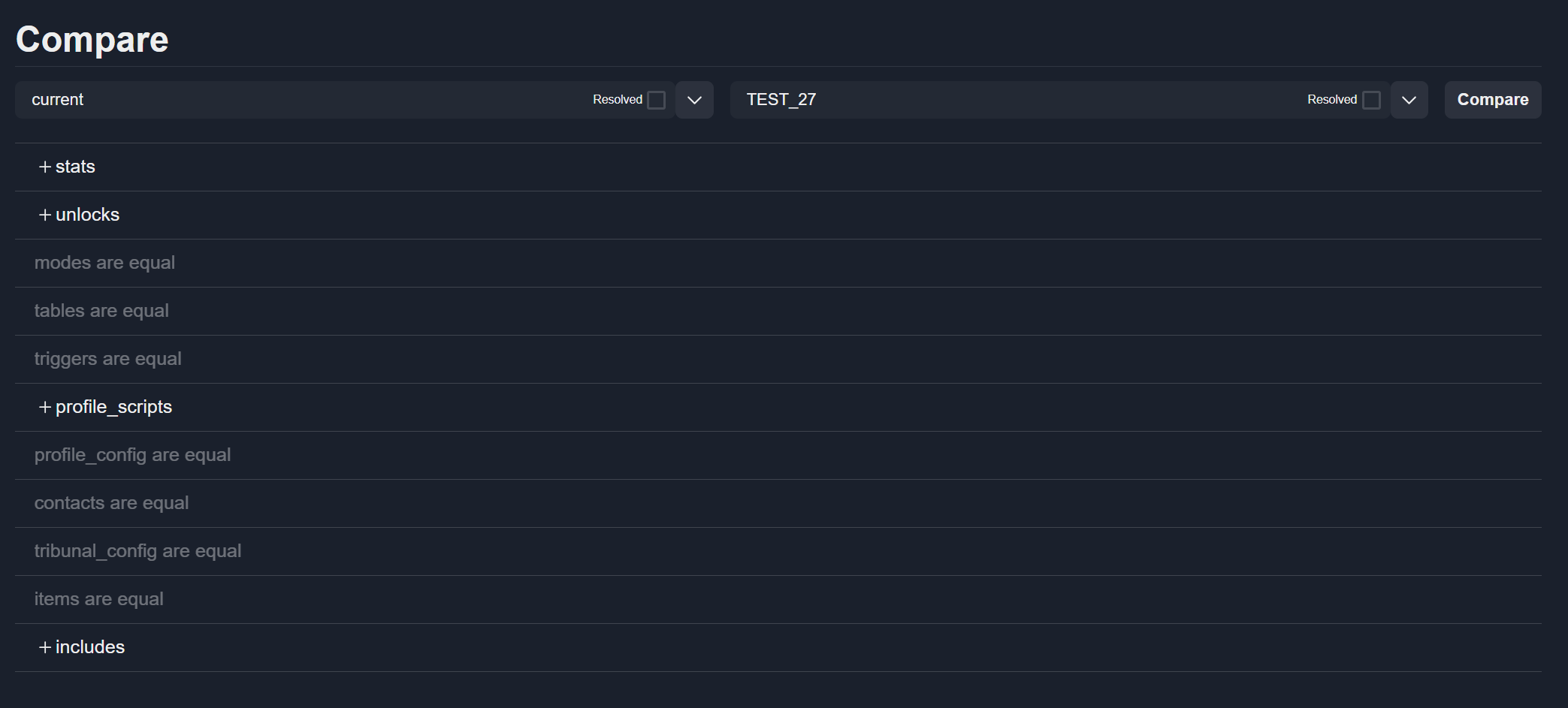
Click a section name to view detailed differences.
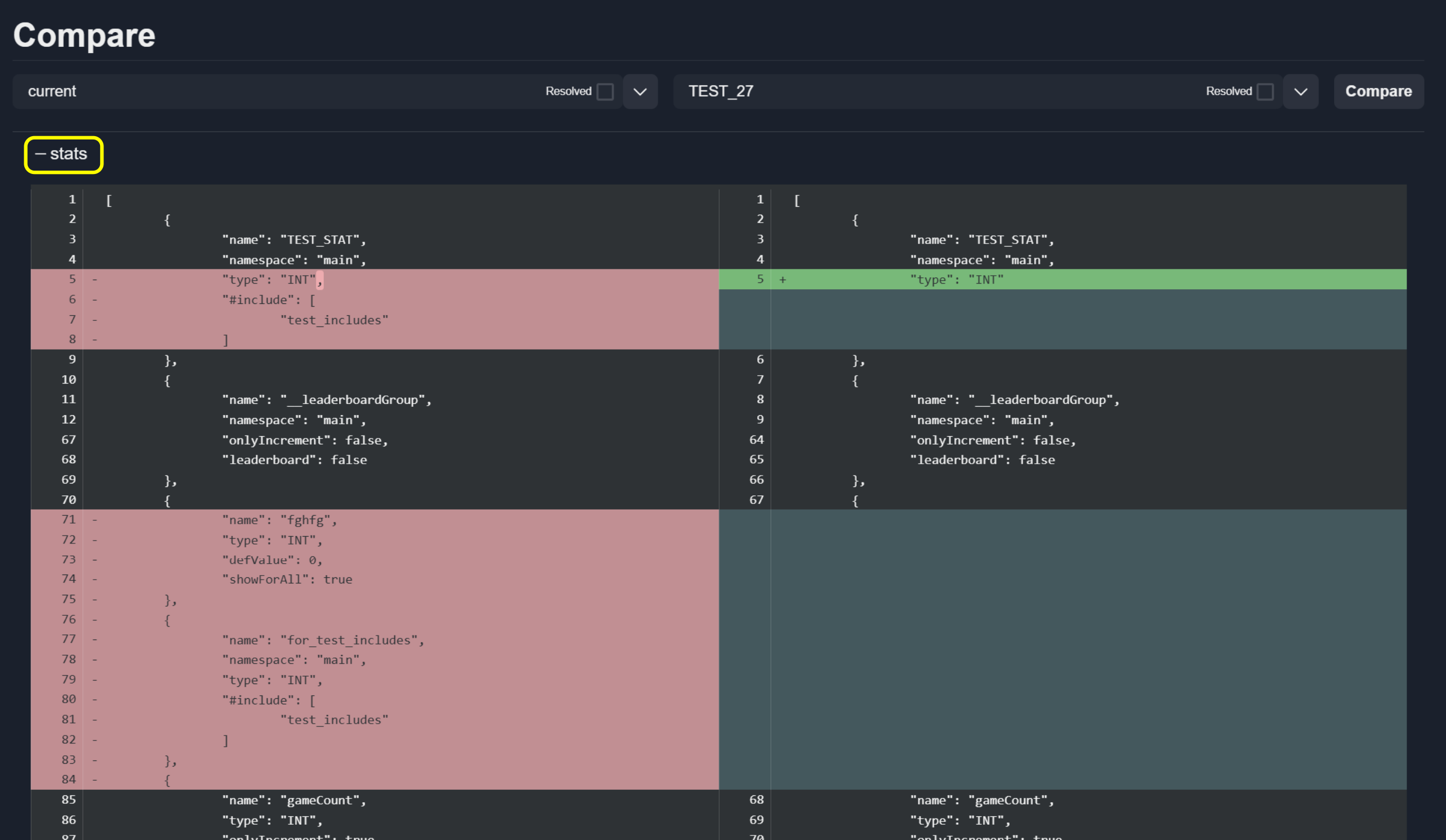
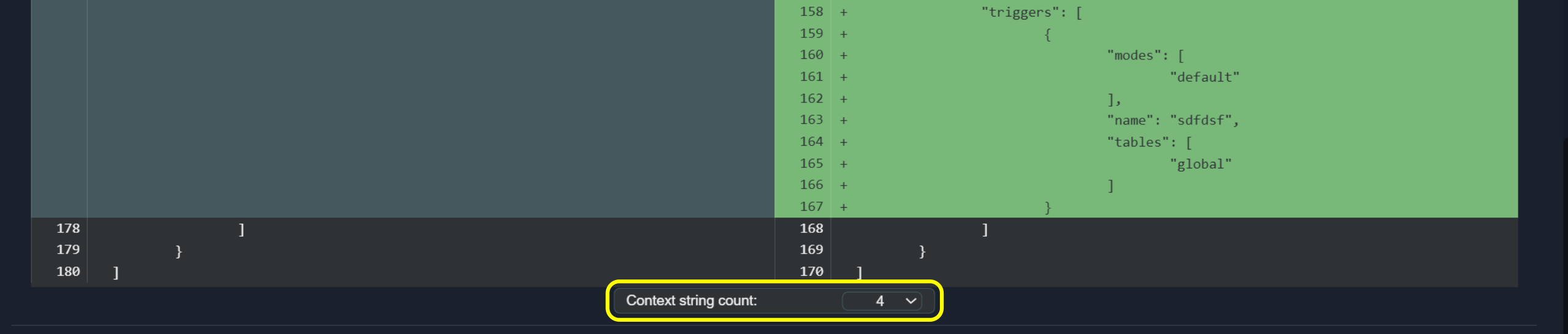
Large blocks of identical lines are collapsed by default. Use the context selector to display additional unchanged lines.
To compare resolved block (with include values) against tag data, enable
the corresponding checkbox.

See also
For more information, see Includes.