Leaderboard
The Leaderboard section allows you to view, filter, and manage leaderboard data based on configurable parameters.
Open Leaderboard
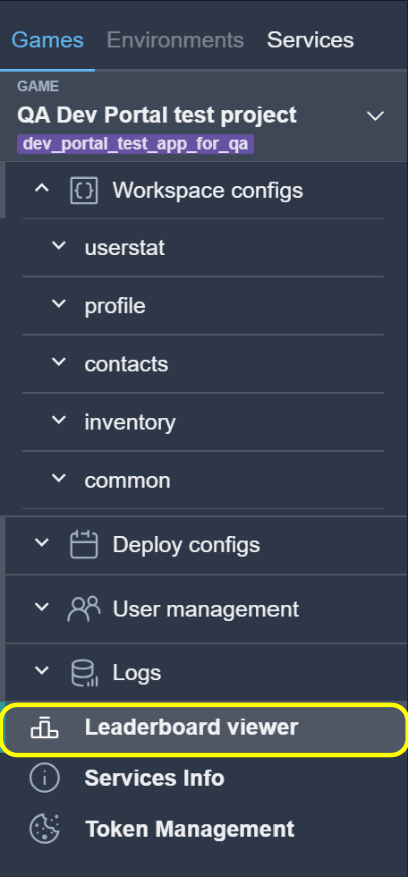
To open the leaderboard, select the corresponding menu item.
Get Leaderboard Data
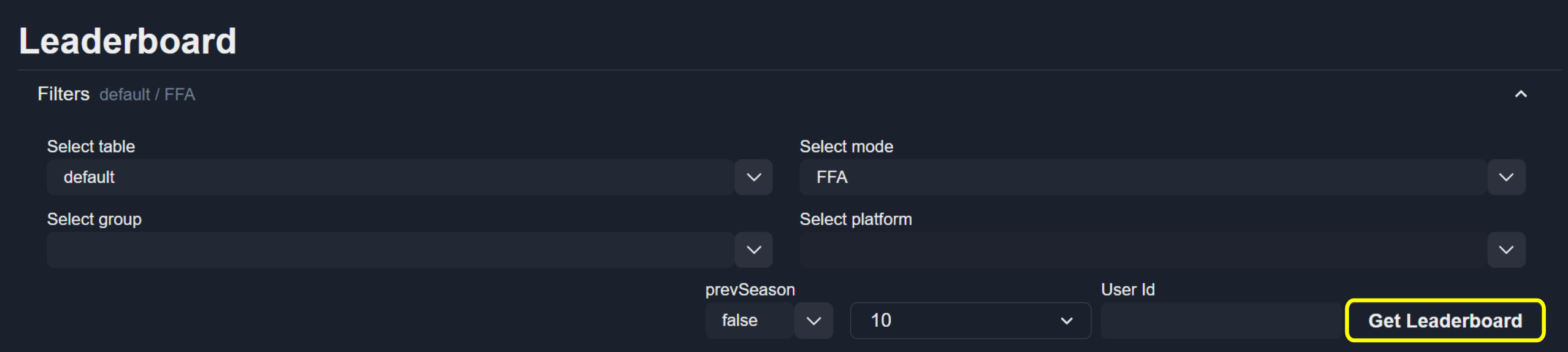
To retrieve leaderboard data, configure the required parameters and click the Get Leaderboard button.
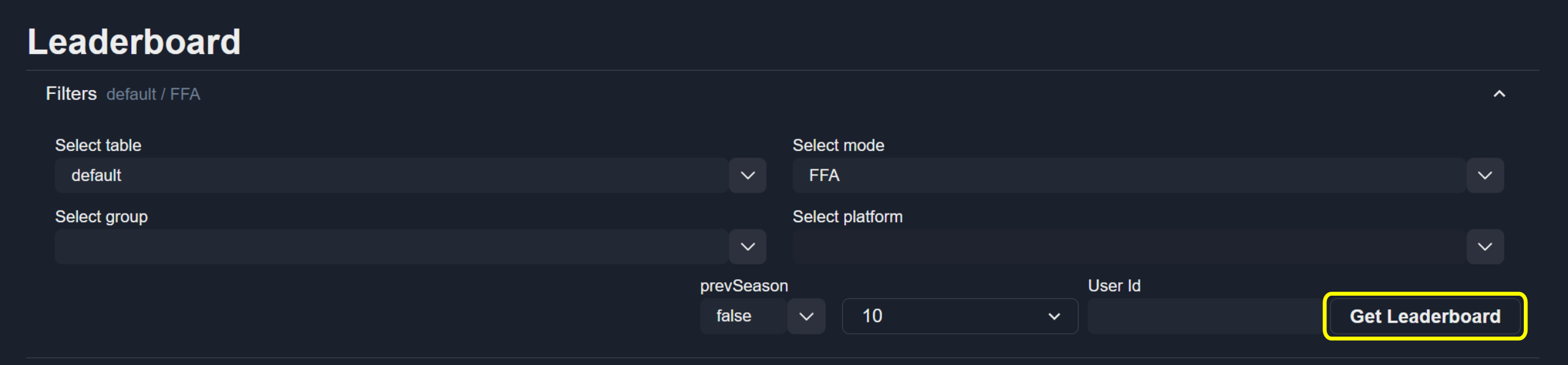
The following parameters are available:
table — Displays the leaderboard for a specific table. (more info).
mode — Displays the leaderboard for a specific mode. (more info).
group — Uses the special statistic value
__leaderboard. (more info).Note
Leave this field empty if a leaderboard group is not used.
platform — Filters the leaderboard by platform (PC, Xbox, PlayStation).
Note
Leave this field empty if platform filtering is not required.
prevSeason — Displays leaderboard data for the previous season.
count — Specifies the number of users displayed per leaderboard page.
User Id — Retrieves leaderboard data for a specific user.
Note
Leave this field empty if a specific user is not required.
Note
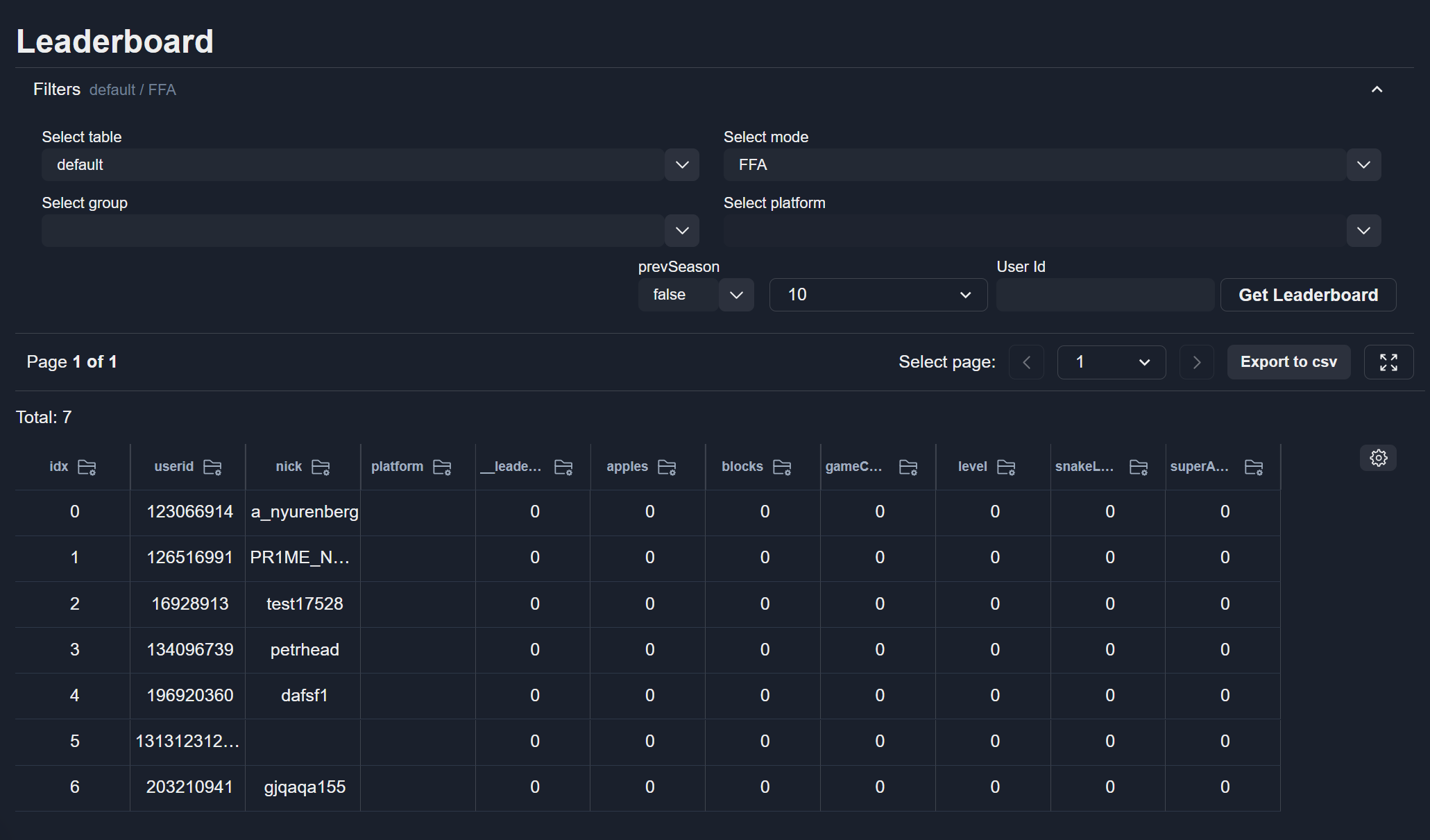
The visibility and ordering of columns follow the settings defined in Table Settings.
Pagination
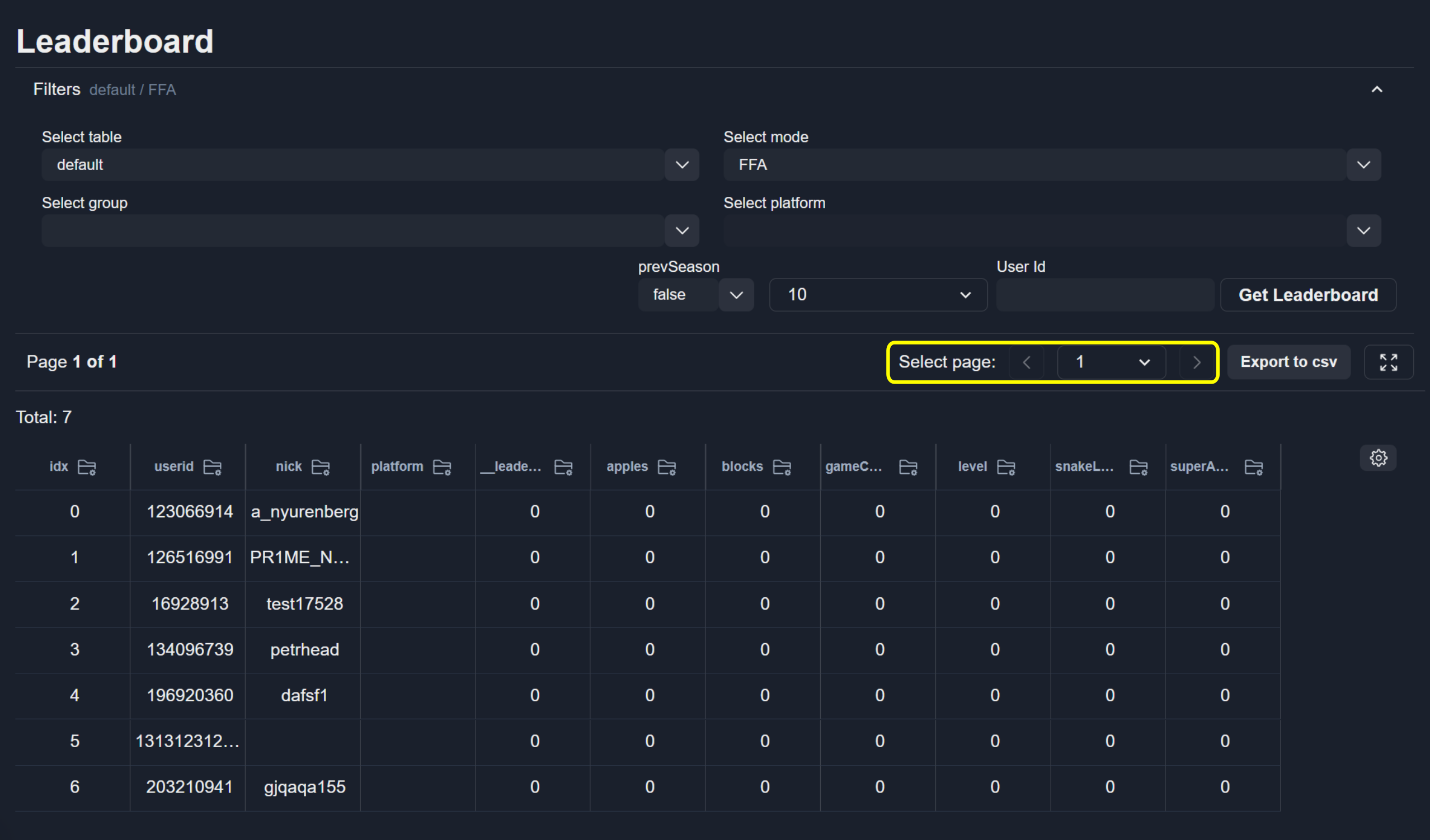
Use the pagination controls to navigate between leaderboard pages.
Filters
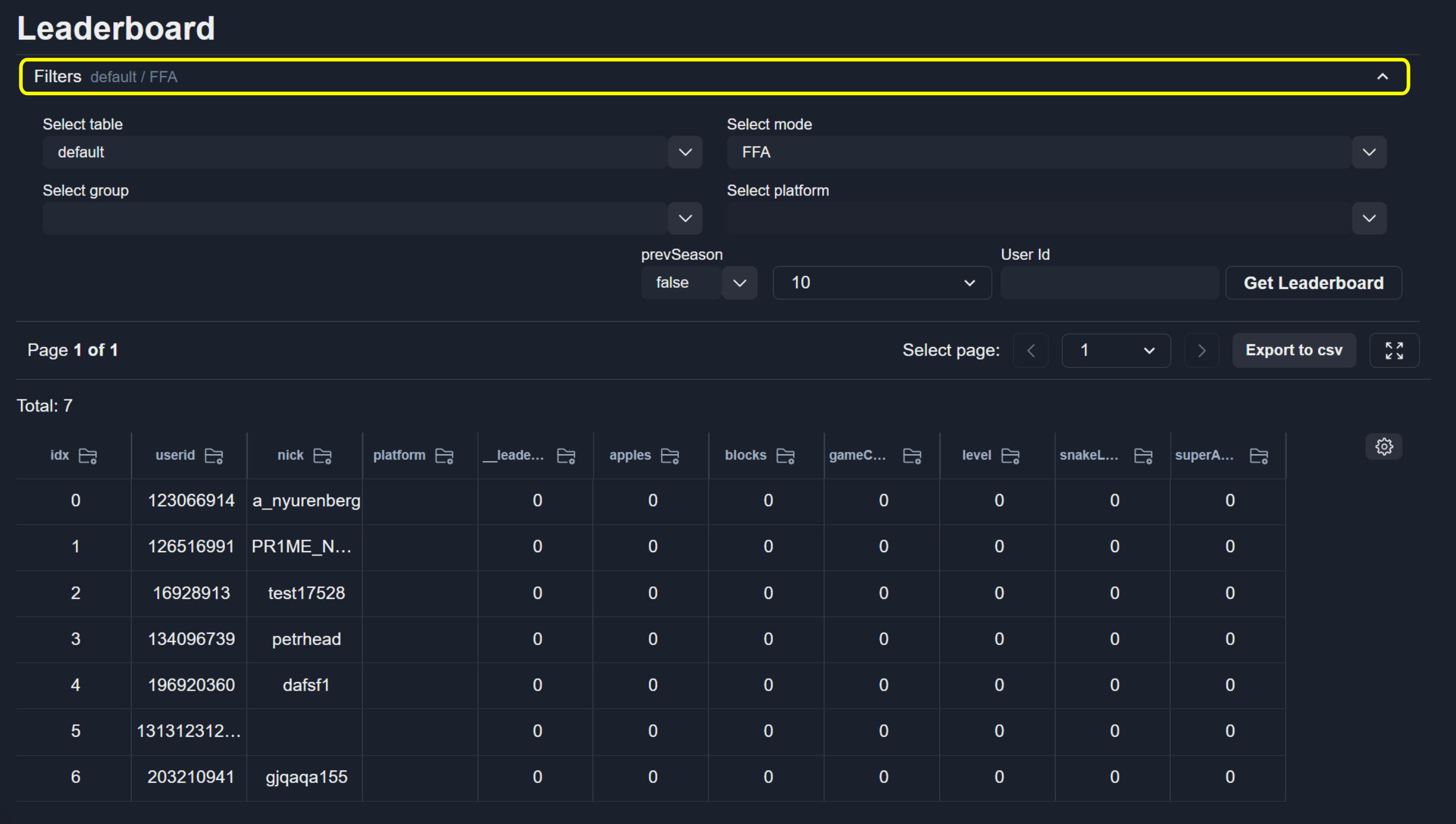
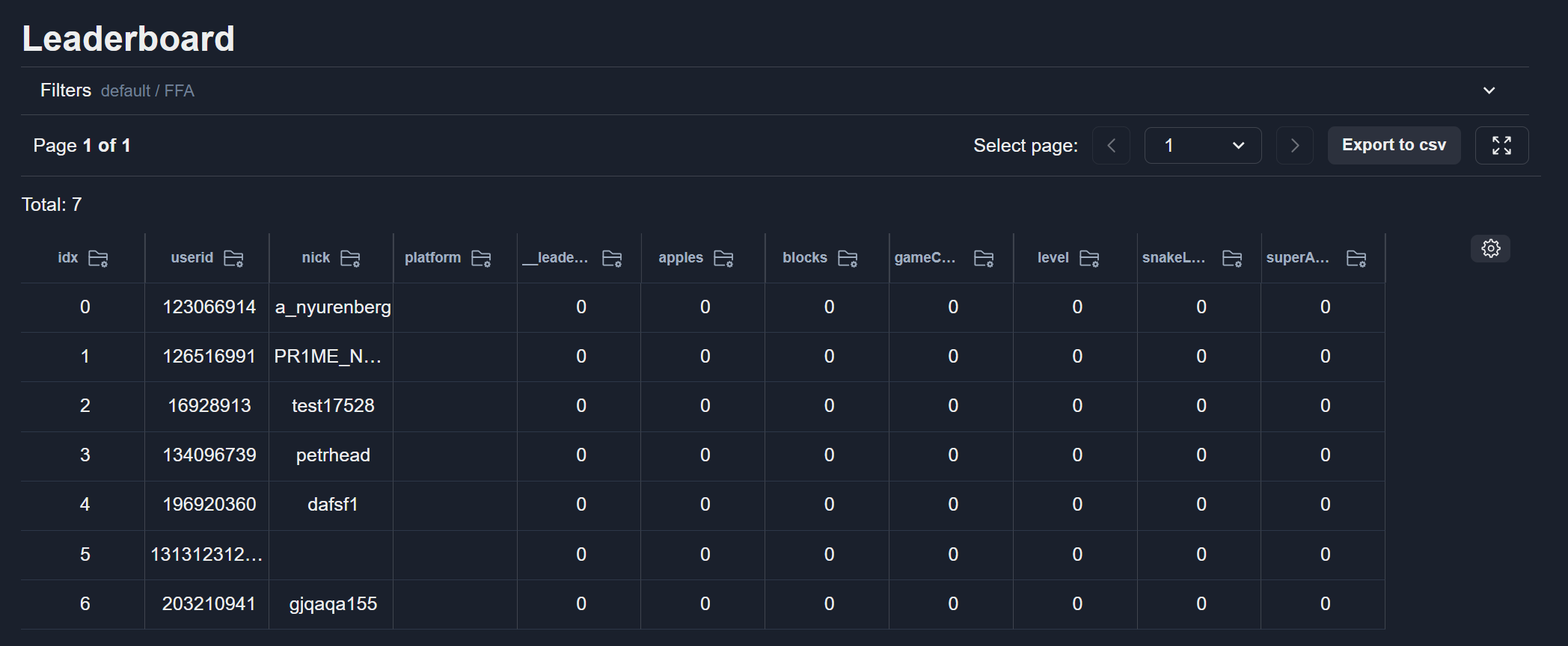
To collapse the filters block, click the button.
Full screen button
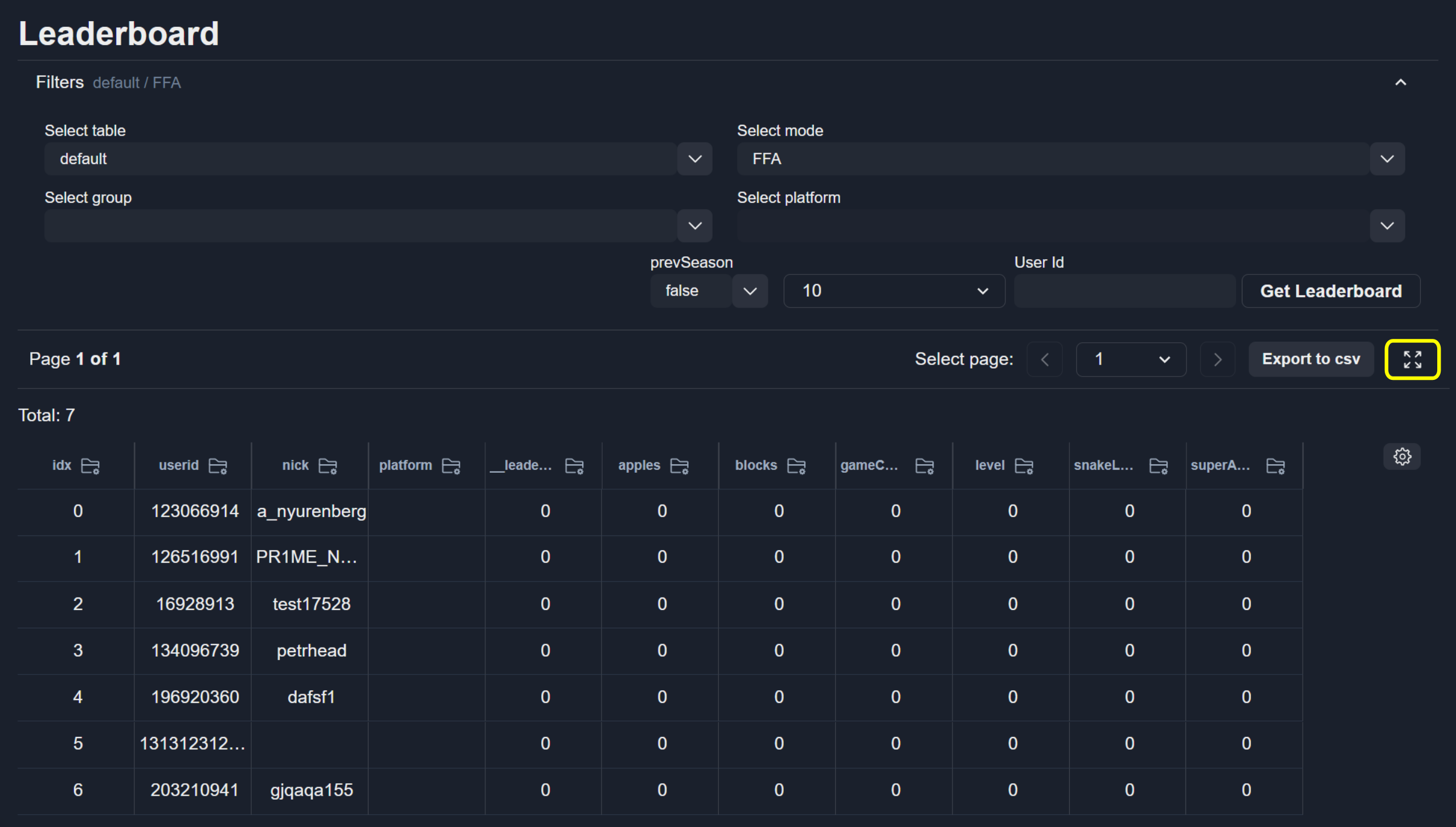
To open the Leaderboard page in full screen mode, click the button.
Export Data
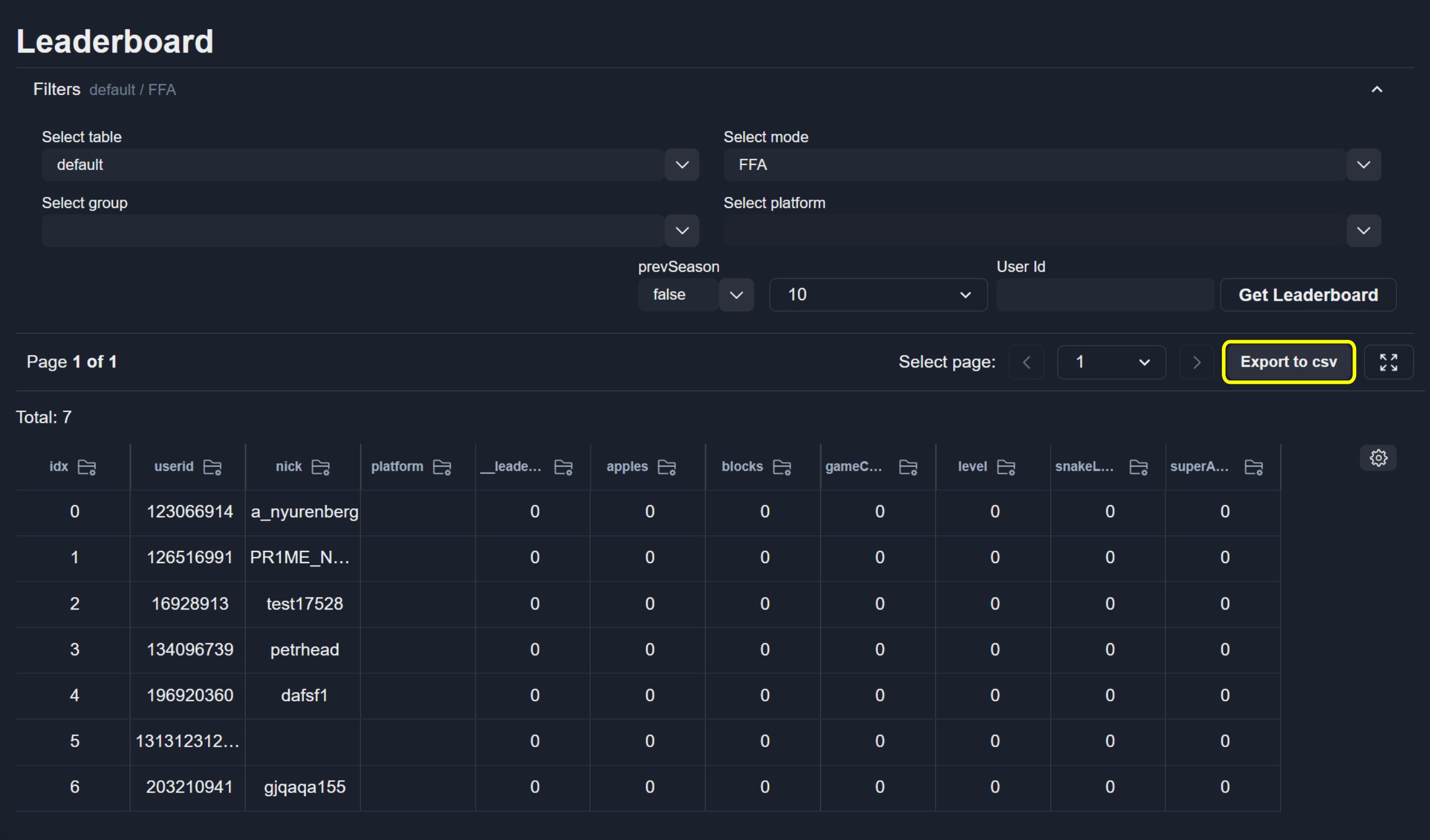
To export the current leaderboard page as a CSV file, click the Export to csv button.
Search by User ID
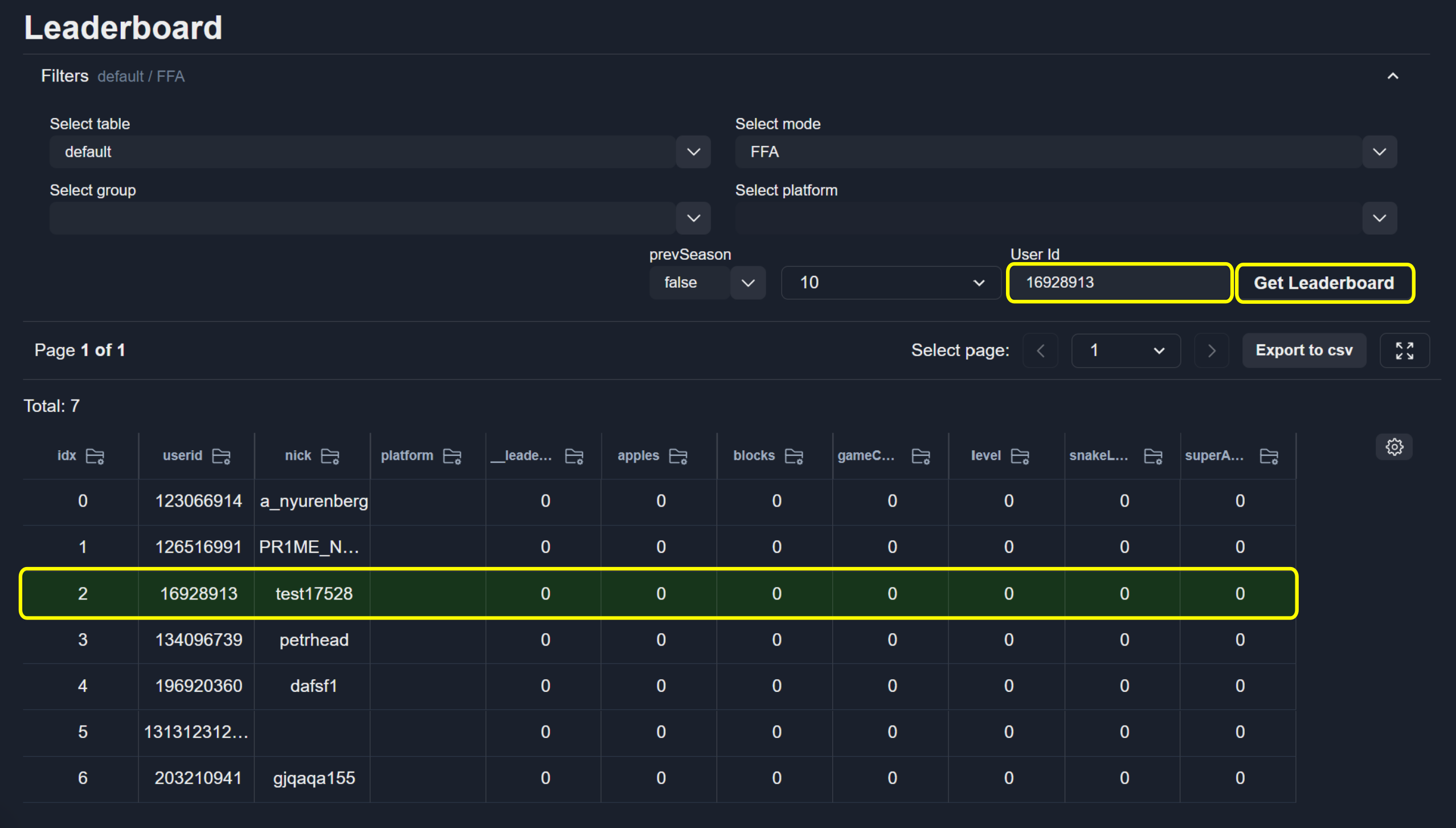
To find a user by a specific ID, enter it in the User Id field and click Get Leaderboard.
Note
If a specific user is not required, leave this field empty.
Save Leaderboards Between Requests
After clicking Get Leaderboard, the selected filters are saved to your user profile.
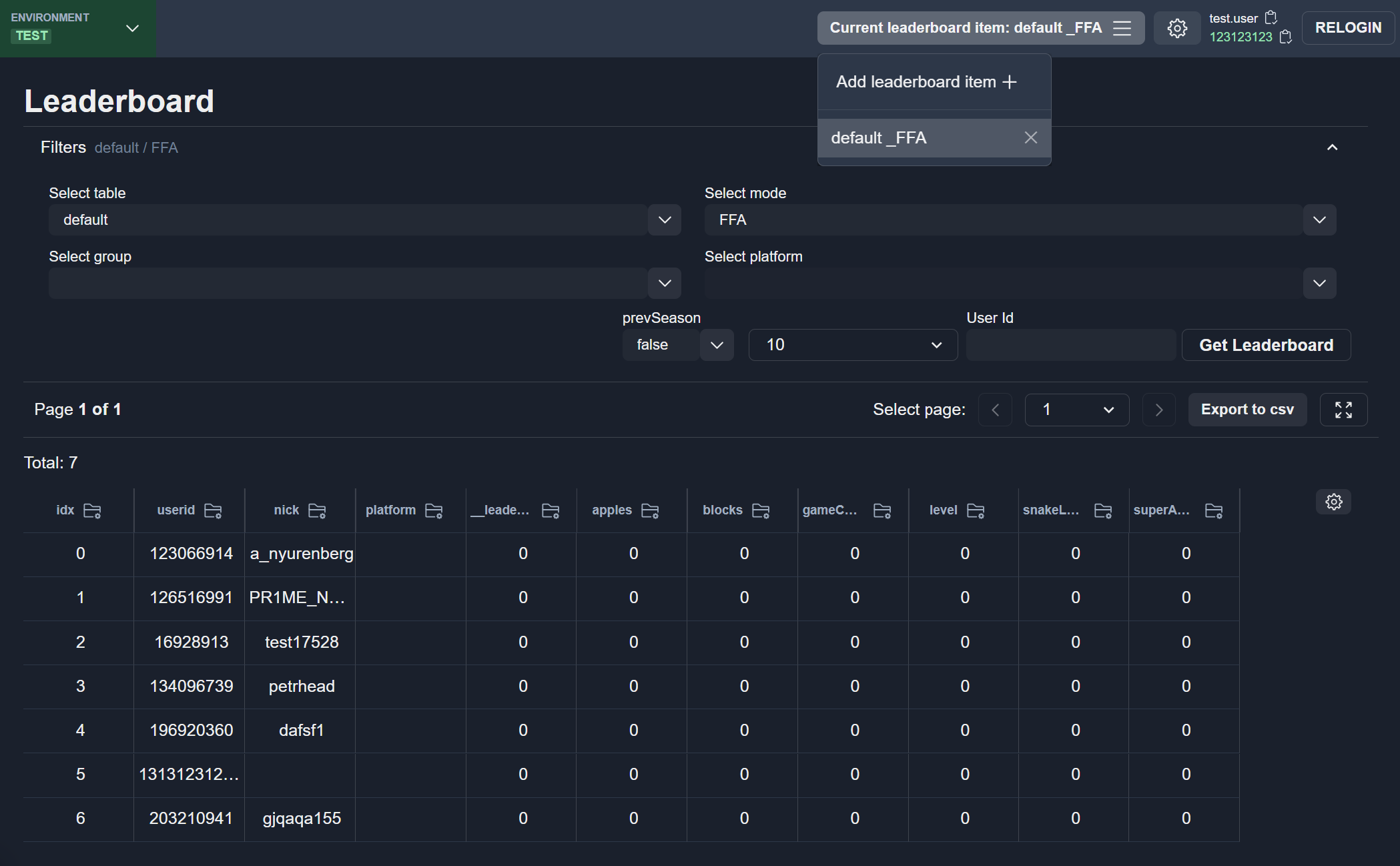
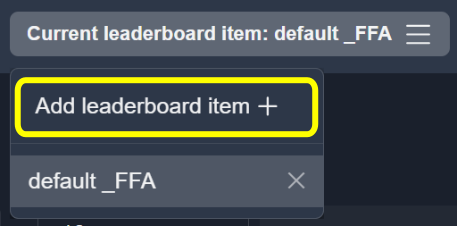
To add a new leaderboard to the saved list, click the corresponding button.
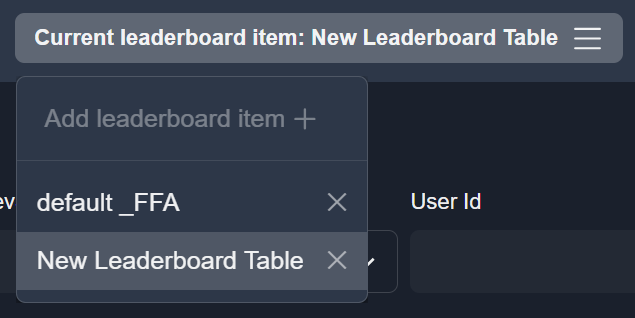
After a new leaderboard is added, an empty table item is displayed.
Configure the required filters and click Get Leaderboard to retrieve data and save the leaderboard.
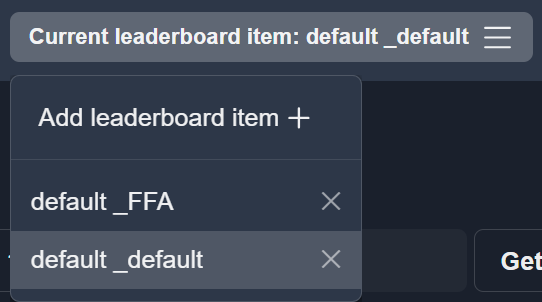
To switch between saved leaderboards, use the top navigation menu.
Note
The saved leaderboard name is generated from the filter values.
Delete Saved Leaderboard
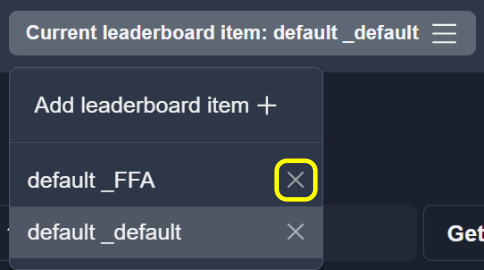
To delete a saved leaderboard, click the delete button.
Note
In a saved leaderboard, filter values are replaced after clicking Get Leaderboard.