Main Interface
The Newsfeed service interface allows content creators to manage, preview, and publish news content across multiple platforms. Below is a detailed breakdown of the interface as seen in the main screen:
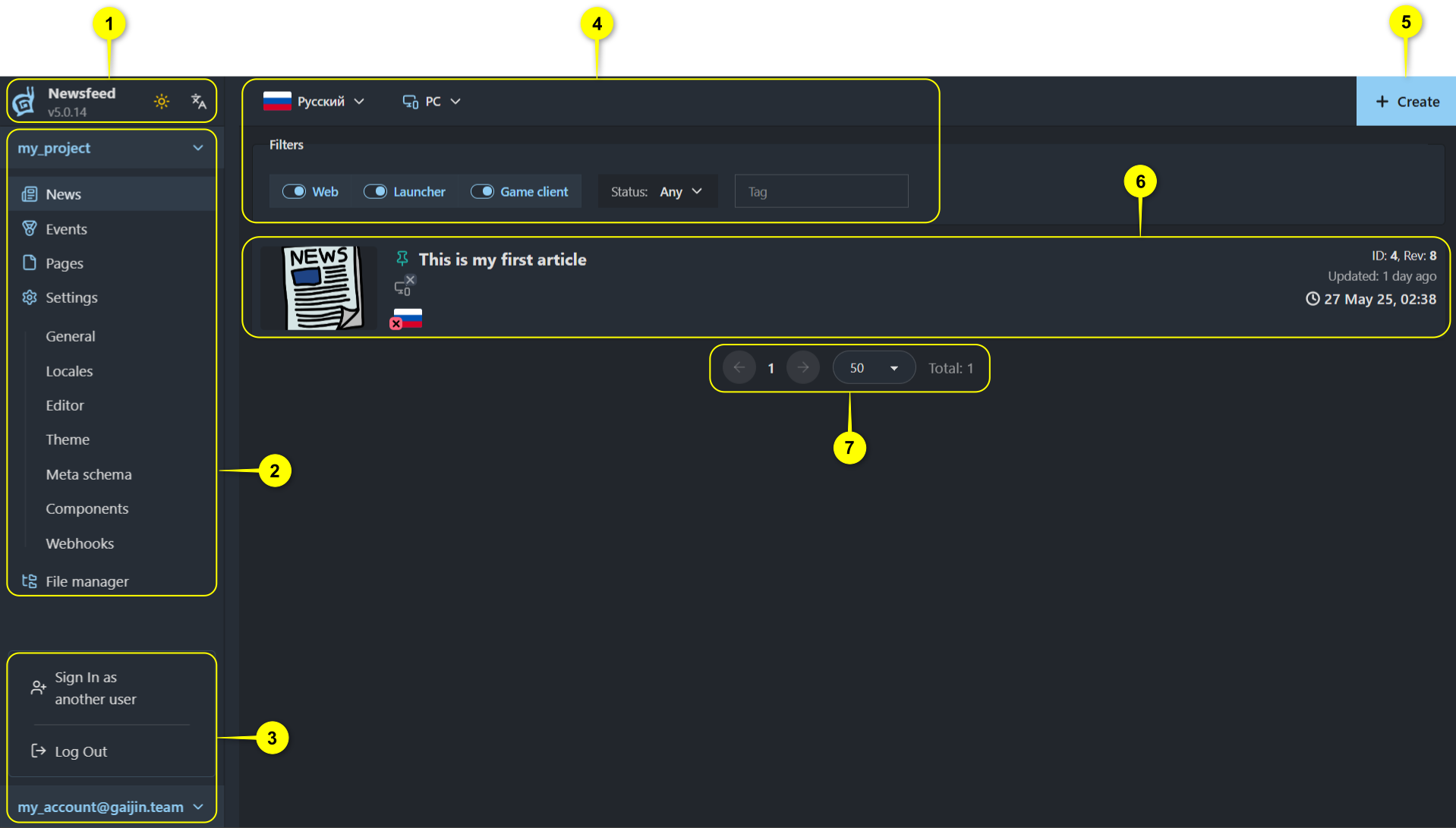
Language & Theme Controls
Language Selector: Switches the interface language (e.g.,
Русский).Theme Toggle: Switches between light and dark interface themes via the sun/moon icon.
User Session Controls
Sign In as another user: Option to switch the user.
Log Out: Ends the current session.
User Email: Displays the logged-in user (e.g.,
my_account@gaijin.team).
Filters Bar
Use filters to narrow down the list of displayed news items:
Client Type: Filter by where the content will appear (
Web,Launcher, orGame client).Game Platform: Filter by end-user platform (e.g.,
PC,PlayStation,XBOX, etc.)Language: Filter news items by their publication language(s).
Status: Filter by publication status (
Draft,Published,Any).Tag: Filter by custom tags assigned to each news item.
News Article List
Each item in the list contains:
Thumbnail/Icon: A visual identifier for the news item.
Title: The news item’s title (e.g.,
This is my first article).Language Flags: Indicates available translations.
Pinned Icon: Marks items that are pinned for visibility.
Article Metadata:
ID and Revision Number (e.g.,
ID: 4, Rev: 8).Last Updated Timestamp: Date and time of the last update (e.g.,
27 May 25, 02:38).
Pagination Controls
Pagination: Navigate through pages of news items.
Items Per Page: Set how many items are displayed per page (e.g.,
5,10,20,50,100).