Owners and Administrators
This section outlines users with admin privileges to manage project resources.
There are currently two project roles: Owner and Administrator. A project can have any number of administrators and owners, but at least one project owner. Administrators have full permissions within the project except for being unable to remove the project owner.
Suppose that you are a game developer who came to Gaijin and want to develop games with your own services. The author of the project is the project owner by default. Having created a project, you can manage project users by adding project administrators and owners.
The difference between project owner and project administrator roles as follows:
Owner can only add (or remove) administrators and other owners.
Administrator can manage any entity in the project (such as applications, services, and service accounts), but not the owner.
Add Project Administrator
Click the Administrators tab in the menu on the left.
This will open the page where you can add project administrators.
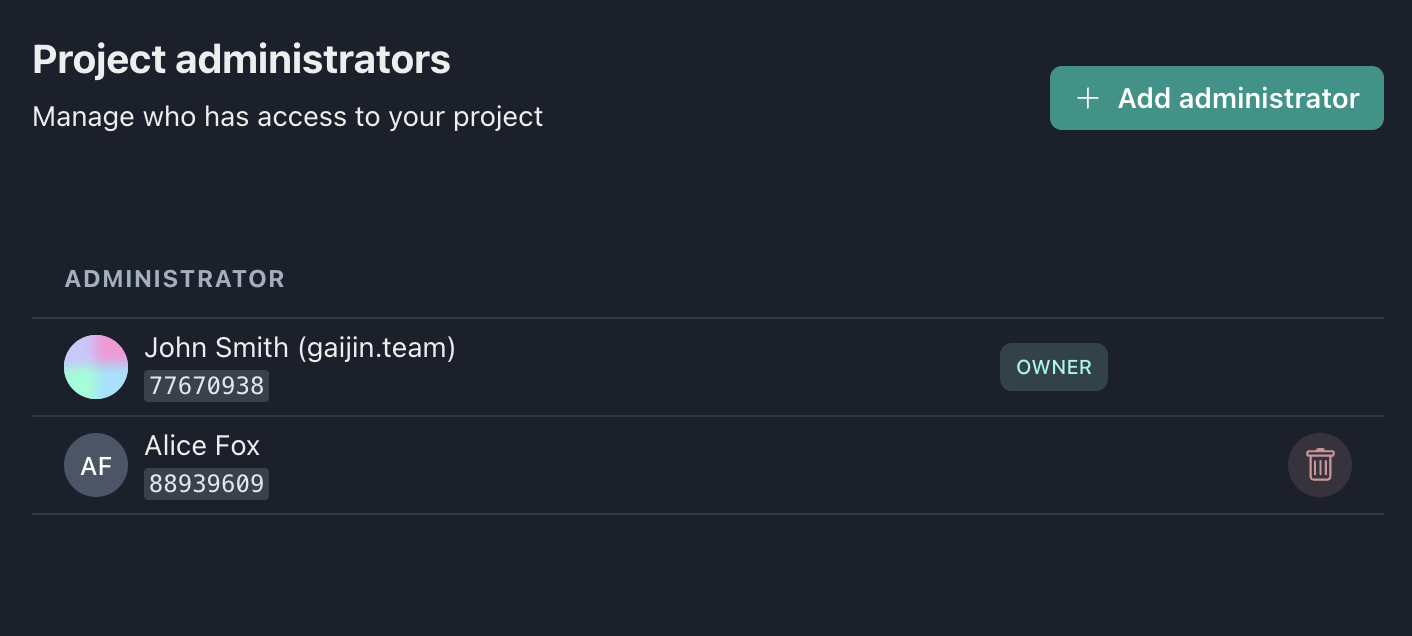
Note
When you create the project, the system automatically adds you to the list of project administrators as the project owner by default. This user cannot be deleted from the Project administrators list but later you can change the project ownership.
Warning
There must be at least one owner of the project.
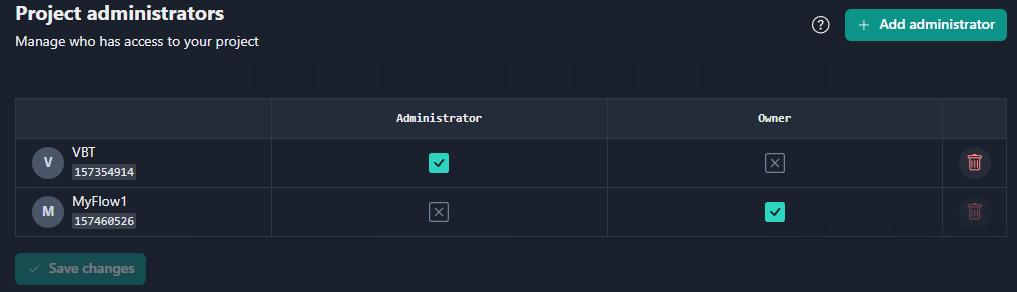
You can check or uncheck the Administrator and Owner boxes to assign the user with the Administrator, Owner, or both roles.
Tip
Many users use nicknames in their accounts. Use the possibility of editing a user’s display name to avoid a confusion about who is who.
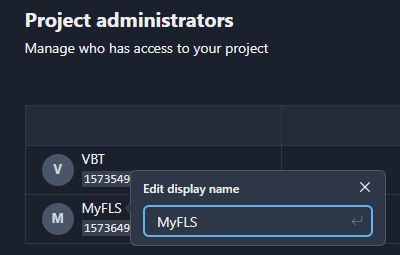
Click the Add administrator button and pick user.
To add an administrator, you need the user ID. Users can provide their UIDs, but you can also find and copy UIDs on the users list.
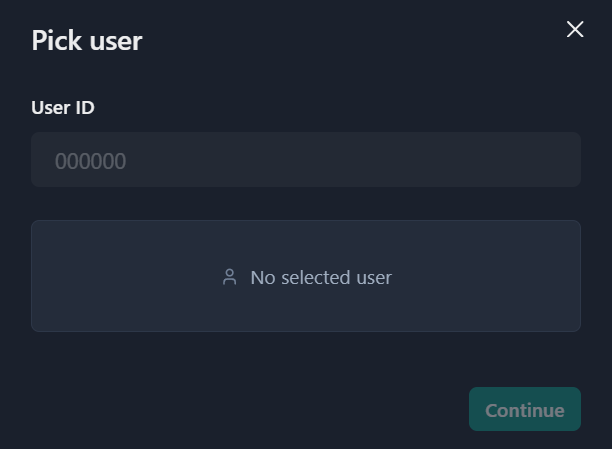
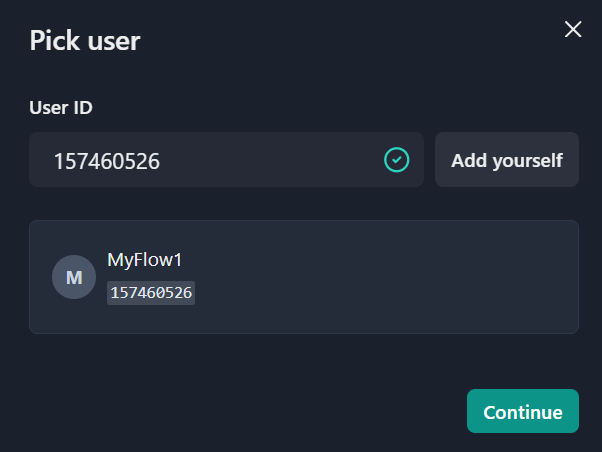
Enter the User ID into the corresponding field and click Continue.
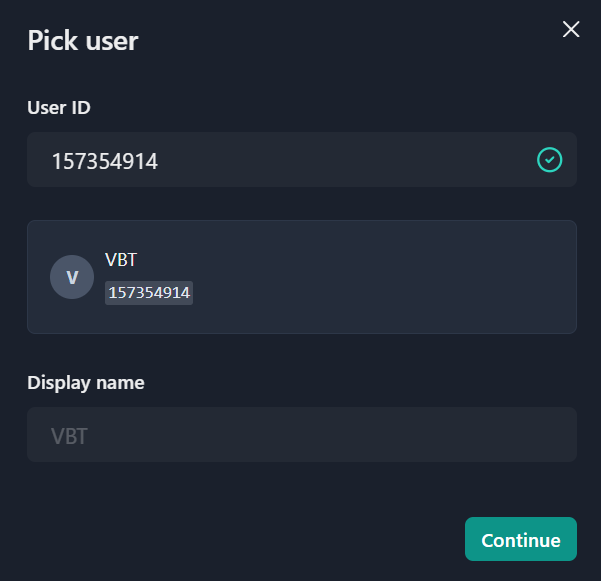
Now you can select roles for the user you add. You can add the user as the Administrator, as the Owner, or with both roles.
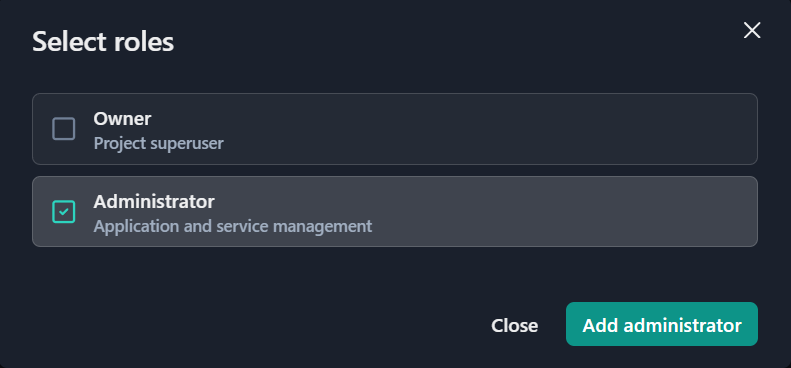
Click Add administrator.
The project administrator is now added to the project.
Add Project Owner
If you need to have more that one owner in the project, you can assign a user from the Project administrators list to be a project owner.
To add a new owner to the project:
Check the Owner checkbox next to the user you wish to grant the project ownership.
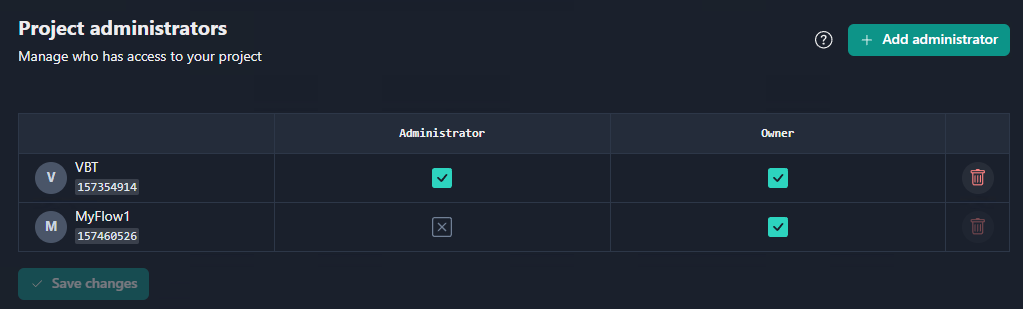
Click Save changes.
In the Confirm changes window, click OK.
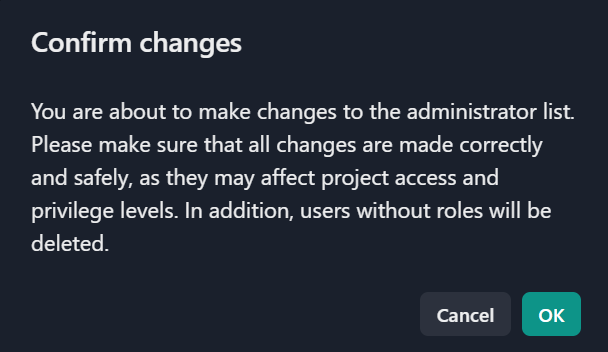
The new owner is now added to the project.
Add Administrators to Application
On the Applications page, you can find the list of administrators added to the application. The administrators list is still empty since no administrators have been added to the project yet.
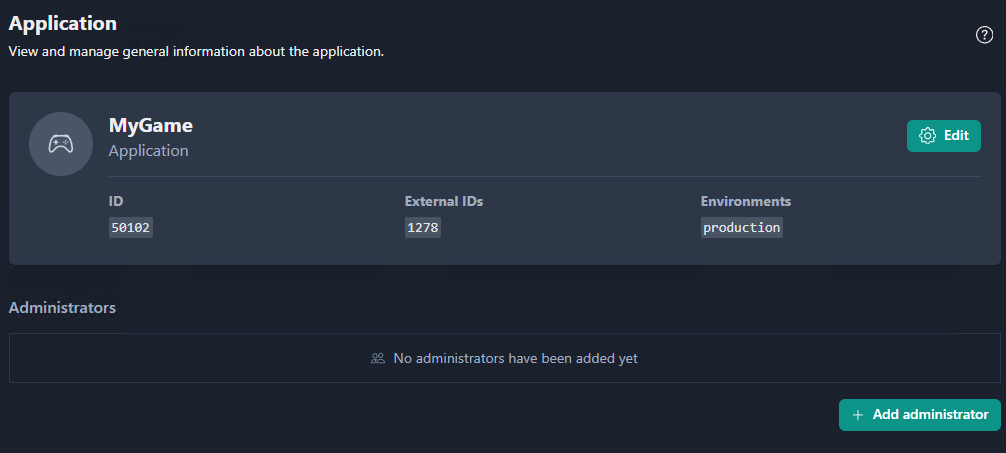
To add an administrator to the application:
Click on the Applications tab in the menu on the left.
Select your application.
Click Add administrator button.
In the Pick user window, enter the User ID or click Add yourself.
In the Select roles window, check the boxes next to the Application administrator roles (Users manager or Developer).
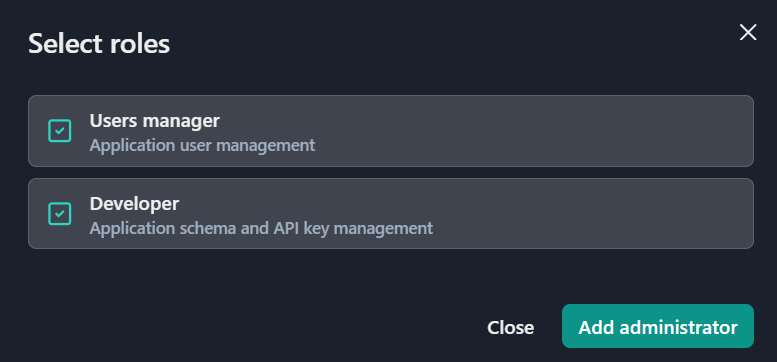
These roles enable an administrator to perform the following actions:
Developer manages:
the application schema (roles and permissions),
application API keys.
Users manager can:
view a list of application users,
assign users with the schema roles supported by the application.