Getting Started
Gaijin Central is a comprehensive portal that allows developers to easily manage their applications, users and services.
Core Concepts of Central Projects and Applications
A Central project is like a container for all applications you create and any resources and services provisioned for the project.
A project can contain one or more applications registered to it (for example, the game application and mobile companion app for it). The core function of the application is to manage access for users.
Any application should have an application schema created. Application schema, in a general sense, is the set of roles and permissions by which an application is accessed. Each role has its own set of permissions, which can be customized to meet the needs of a particular group of users.
An application allows you to generate Application API keys to make authorized server-side requests in the name of the application.
Connecting services to the project, you can provide extended functionality for your applications, for example, a service for publishing content, community bug reporting, forums, and so on.
User Interface
Account Menu
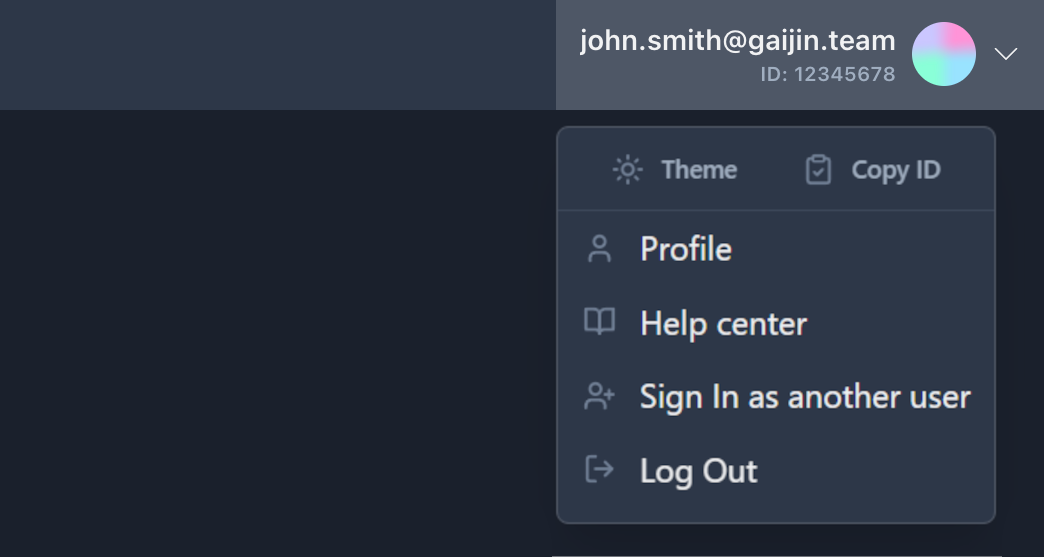
The Account menu button can be found in the top-right corner of the page. This menu enables you to:
Switch between light and dark color themes.
Copy user ID. This can be useful when adding yourself to the list of users of an application or service.
Go to your Profile page.
Go to the Help center.
Sign in with another account.
Log out of your account.
Start Menu
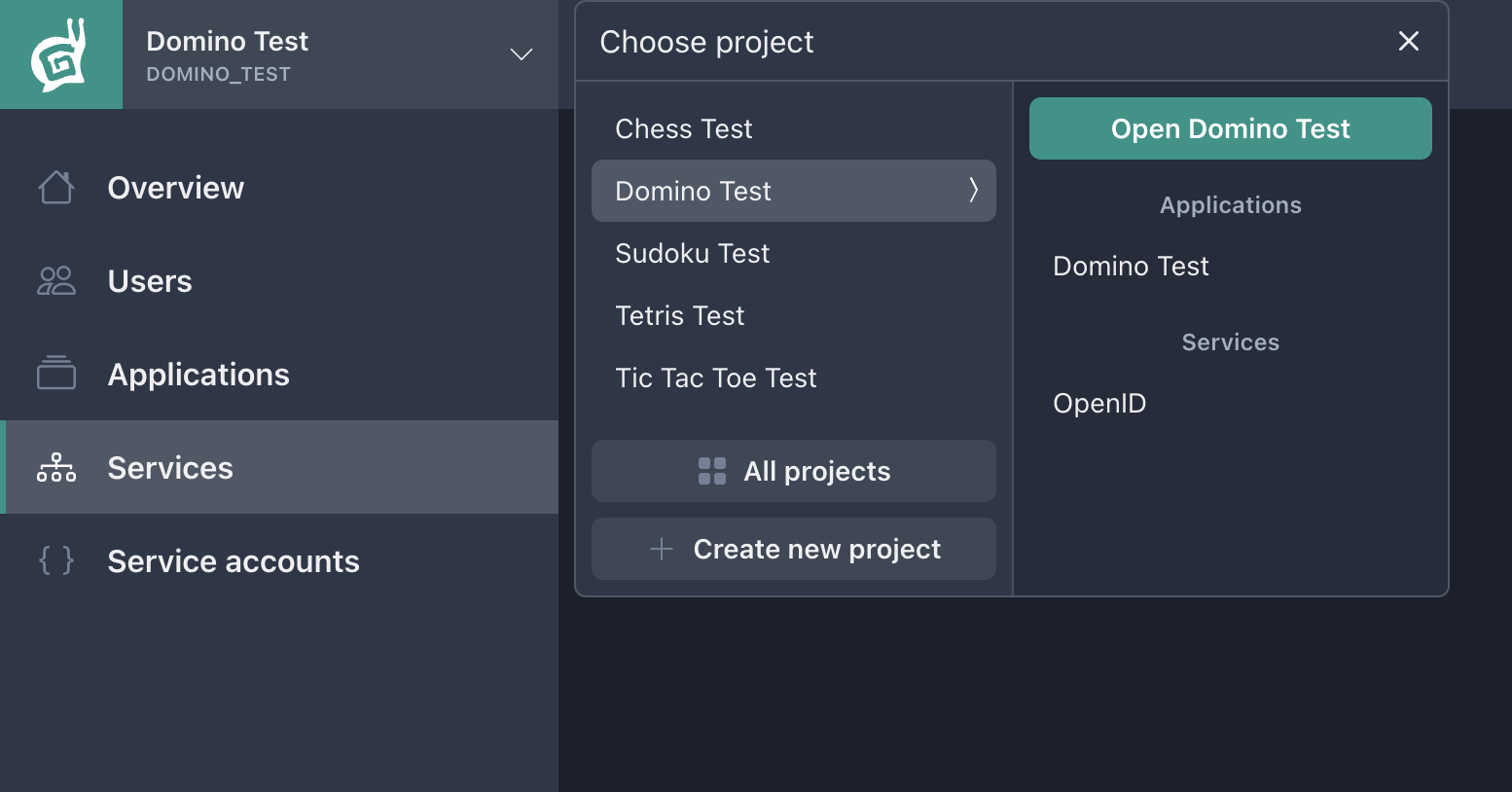
The Start menu button can be found in the top-left corner of the page and provides a navigation list of available projects, applications, and services. In this menu you can also find the Create new project button if you have the required permissions.
Side Navigation
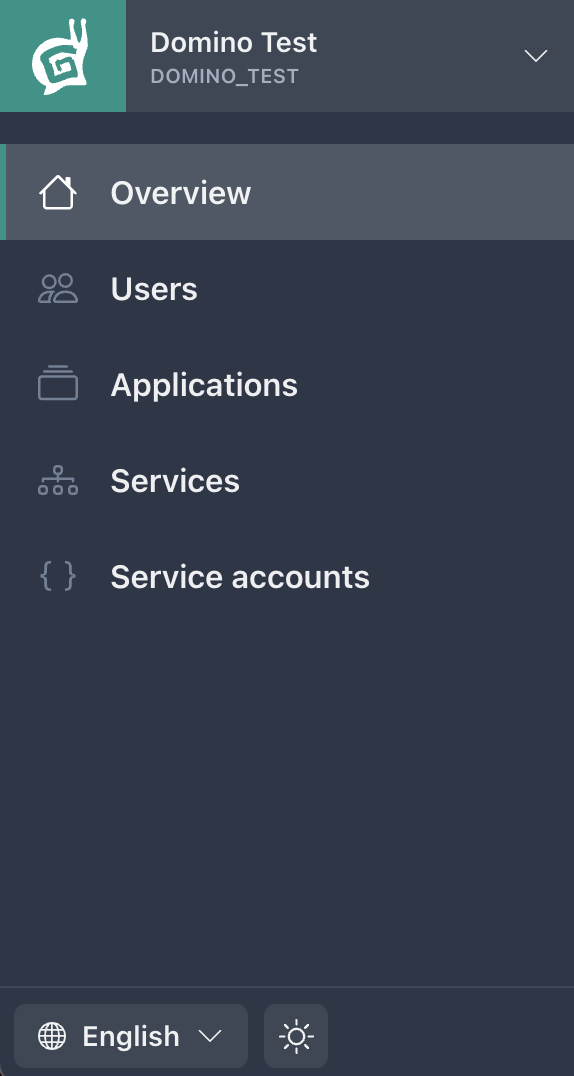
The main navigation menu of active project. At the bottom of this menu you can change the interface language and color theme (light or dark).