Tables
Tables across the Dev Portal share a common set of features and behaviors. This section describes the available table controls and how to use them.
Record Count
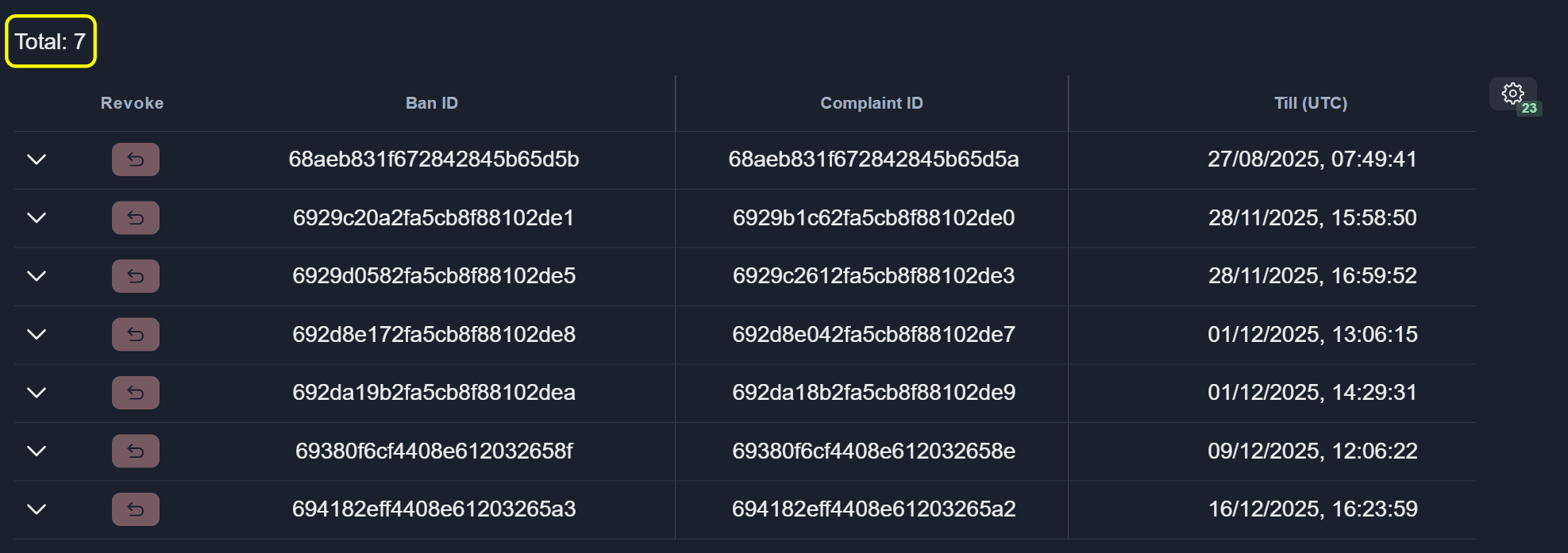
The total number of records is displayed above the table:
Column Order
To change the column order, hover over a column header and use the arrow buttons on either side of the header to move the column left or right relative to adjacent columns:

Column Visibility
Hide Column
To hide a column, click the Eye icon in the column header:

Column Settings Menu
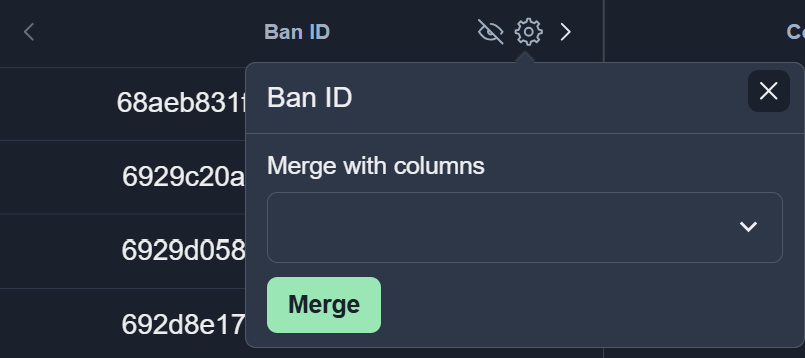
To open the column settings menu, click the Settings icon in the column header:

Column Merging
Merge Columns
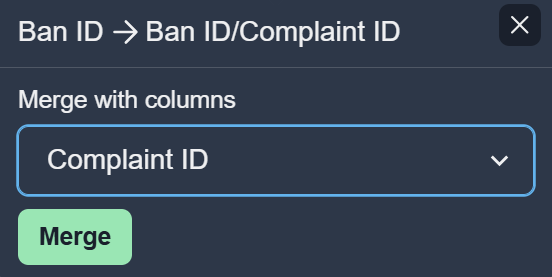
To merge one column into another, select a column name from the list of available columns and click the Merge button:
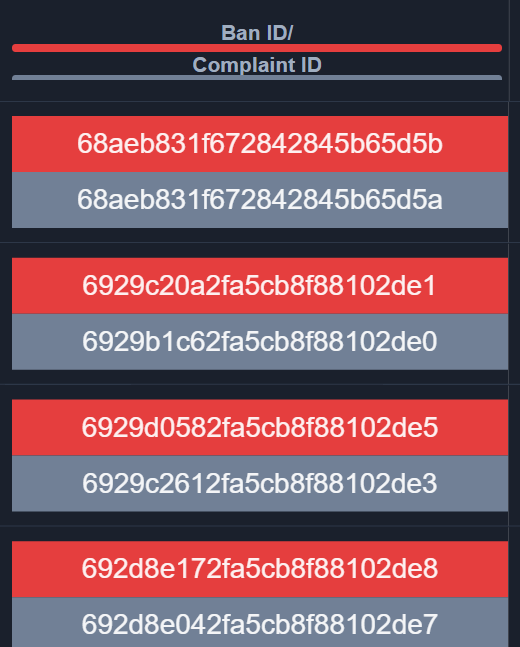
Merged Column Appearance
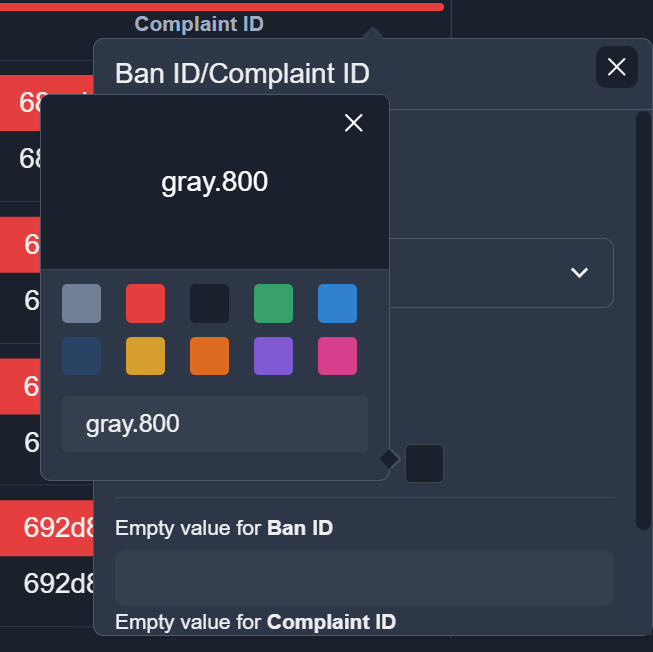
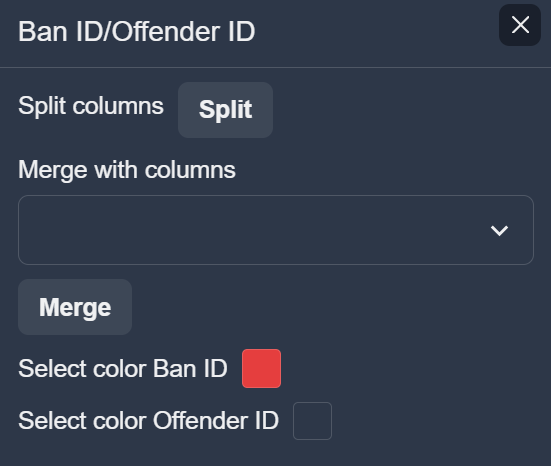
After columns are merged, colors can be assigned to each merged column:
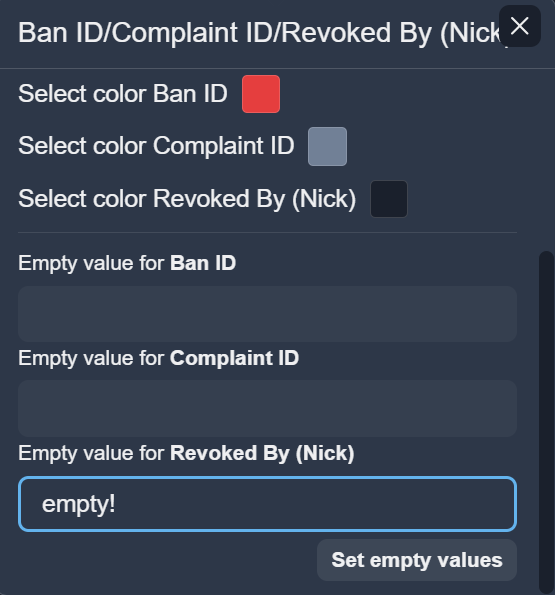
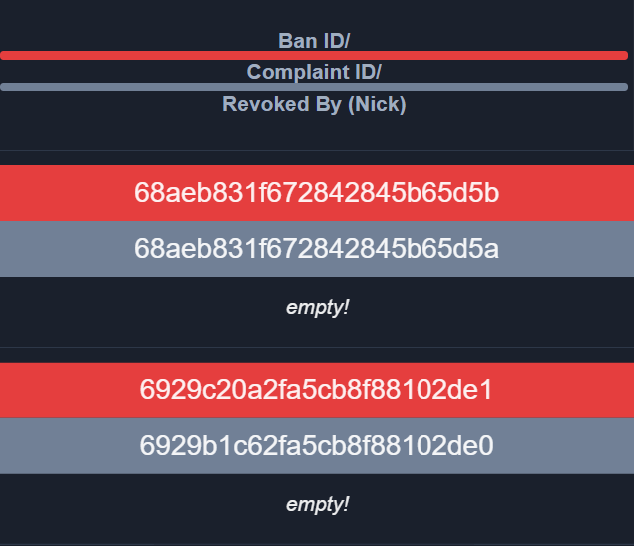
Empty Values
For merged columns, a custom value can be specified to represent empty values:
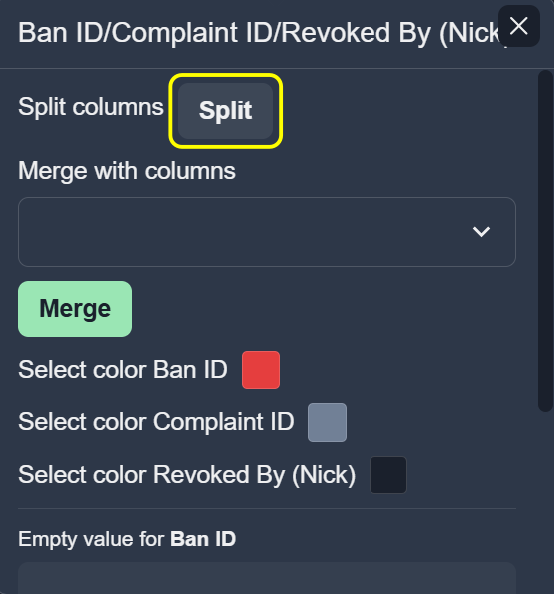
Split Columns
To split a merged column back into individual columns, click the Split button:
Filtering
Some columns support filtering by column value.
To apply a filter, click the Filter icon in the column header, enter a value, and click Apply filter:

Note
To search for values using OR use ||.
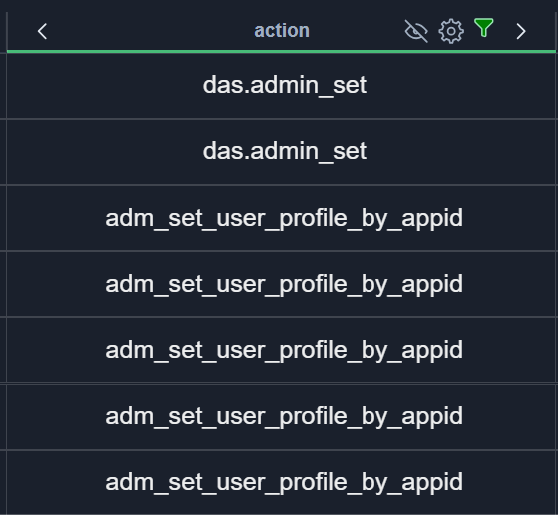
Filtered columns are highlighted with a green bottom border:
To clear the filter value, click the button:

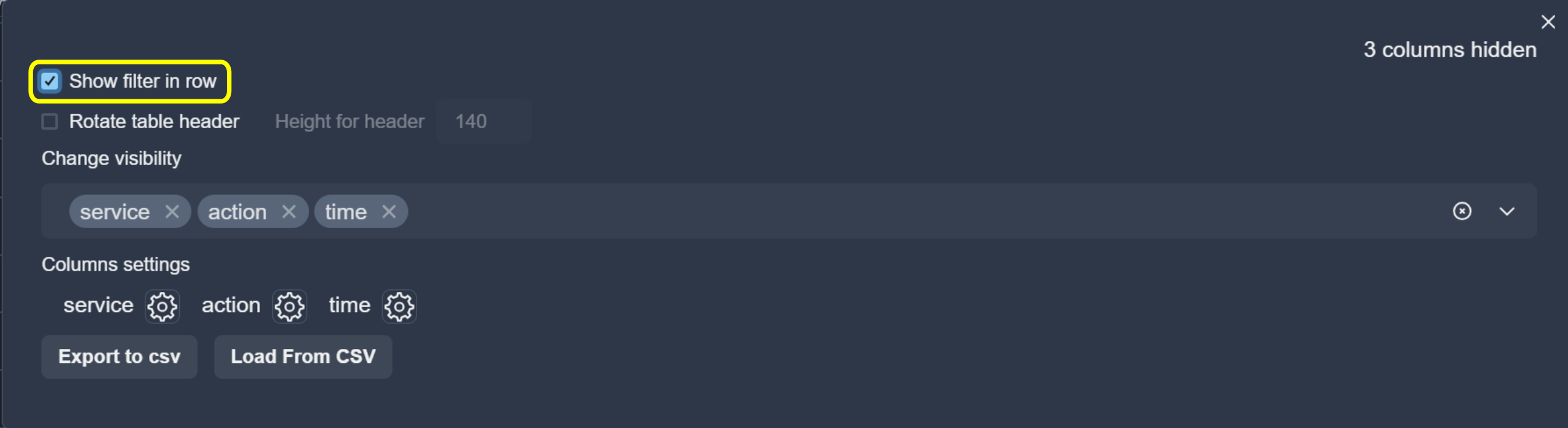
To show filters as an inline row directly below the column headers, open the Table Settings and enable the Show filter in row option:
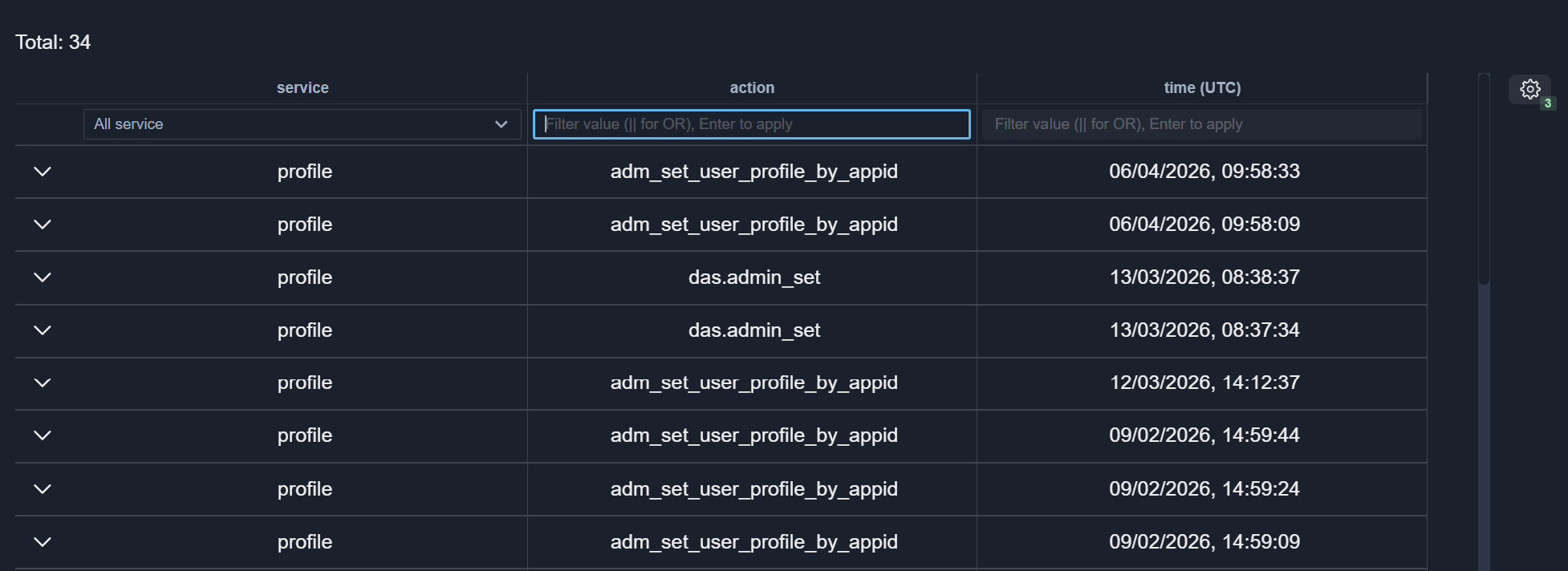
The filter row will appear below the column headers, allowing you to filter each column directly in the table:
Sorting
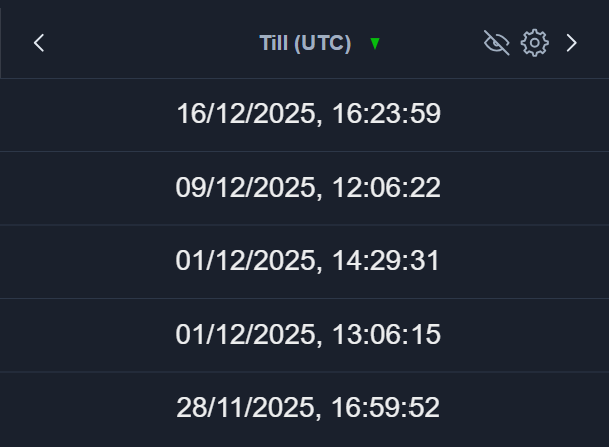
Some columns support sorting by value.
To sort the table, click the column header:
Column Width
To resize a column, hover over the column divider and drag it to the desired width:
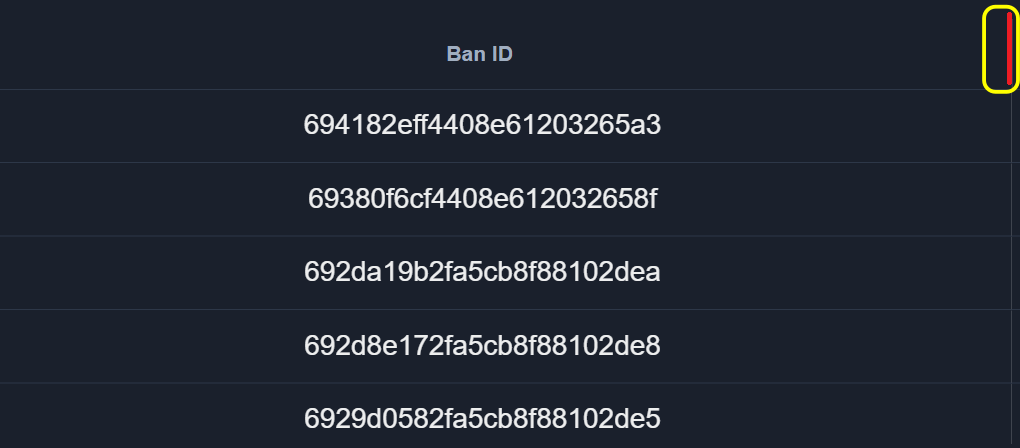
When the column width is small, all settings buttons are hidden in the drop-down menu:

Table Settings
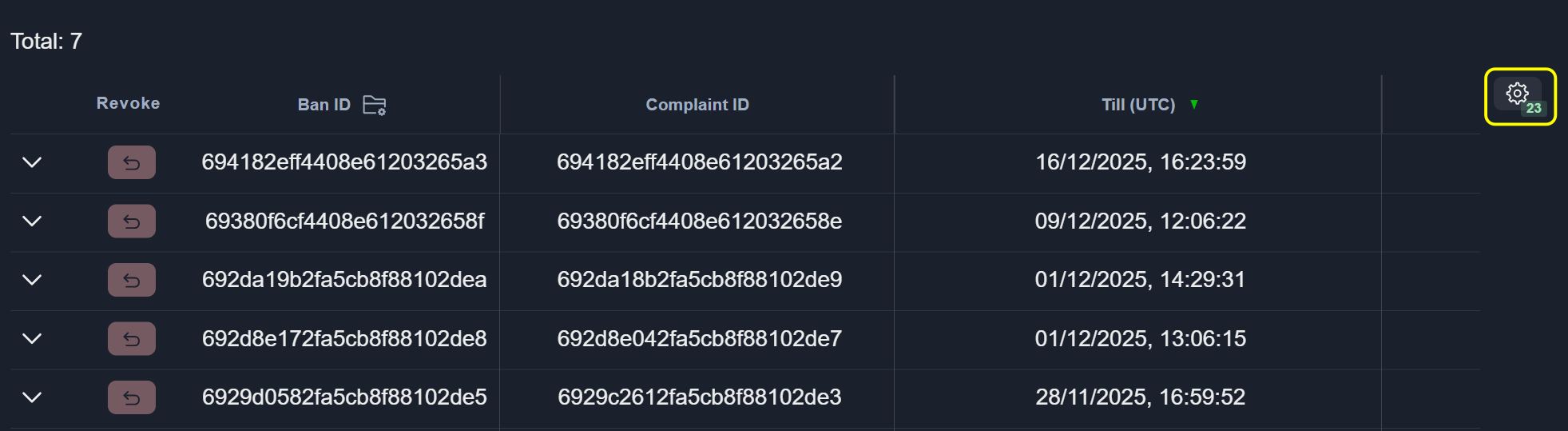
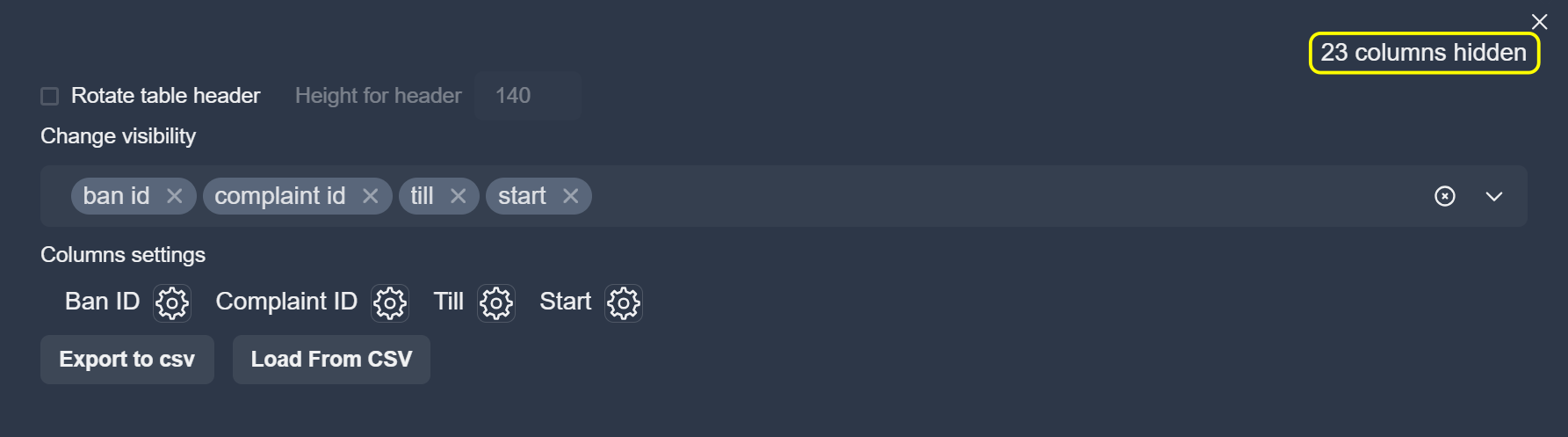
To open the table settings menu, click the table Settings icon:
Rotated Header
To rotate the table header, enable the Rotate table header option:
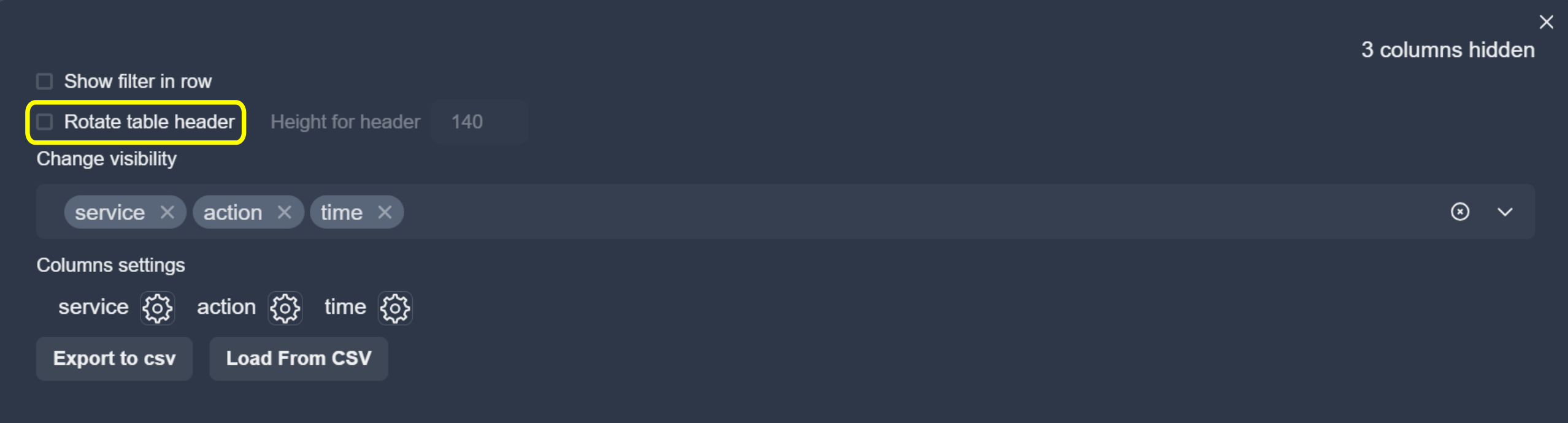
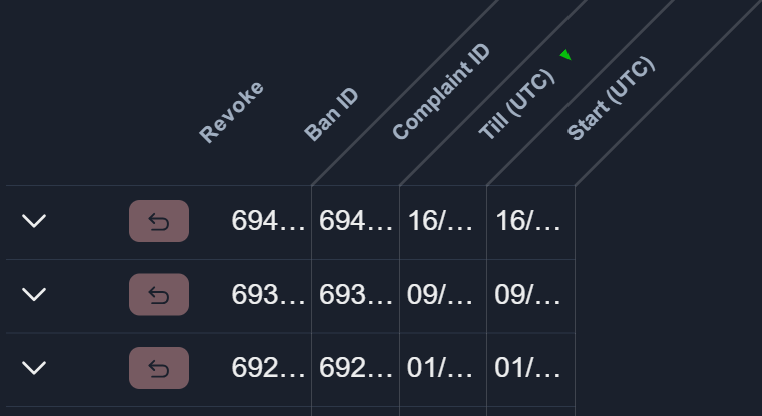
The height of the rotated header can be adjusted using the input Height for header field:
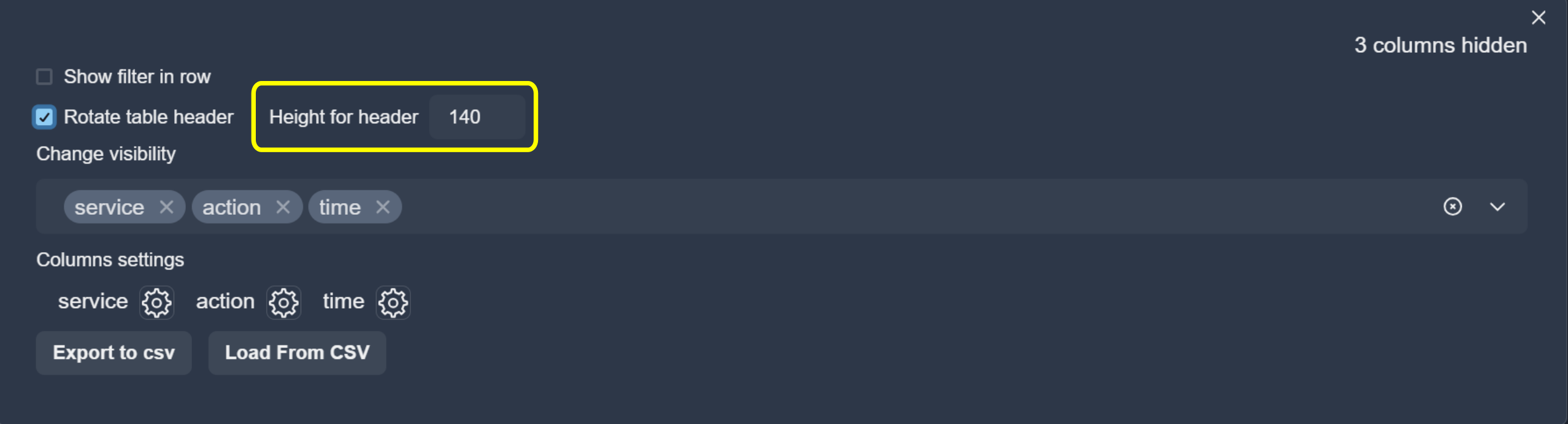
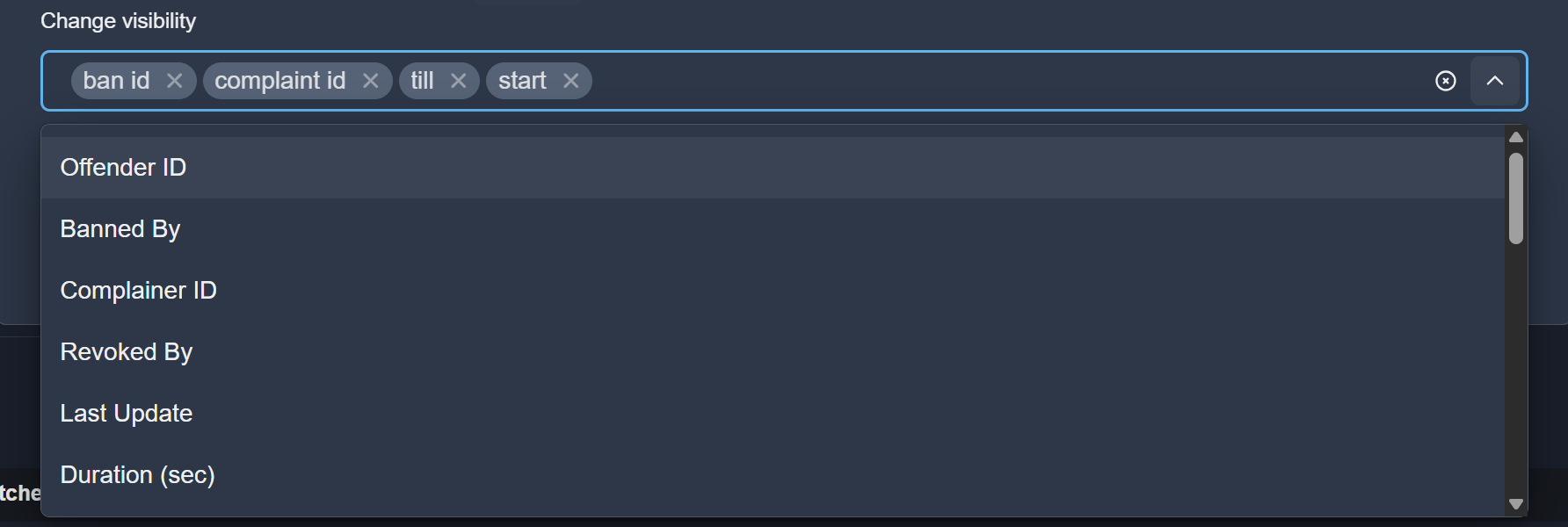
Column Visibility Control
Column visibility can be managed using the visibility selector:
Note
The last remaining column cannot be hidden.

Column Merging
Columns can also be merged from the table settings menu.
To merge columns, click the Merge button, select the column names from the list, and confirm the action.
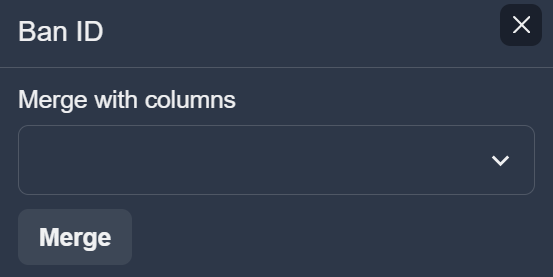
After merging, colors can be assigned to each merged column:
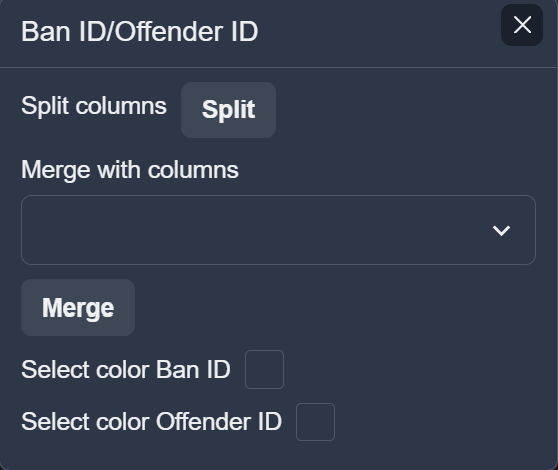
To split a merged column, click the Split button:
Import and Export Settings
You can import and export column settings using the buttons shown below:
Export to CSV: exports the current column settings to a CSV file.
Load from CSV: loads column settings from a CSV file.
